Privacy and Security Are Two Sides of the Same Job
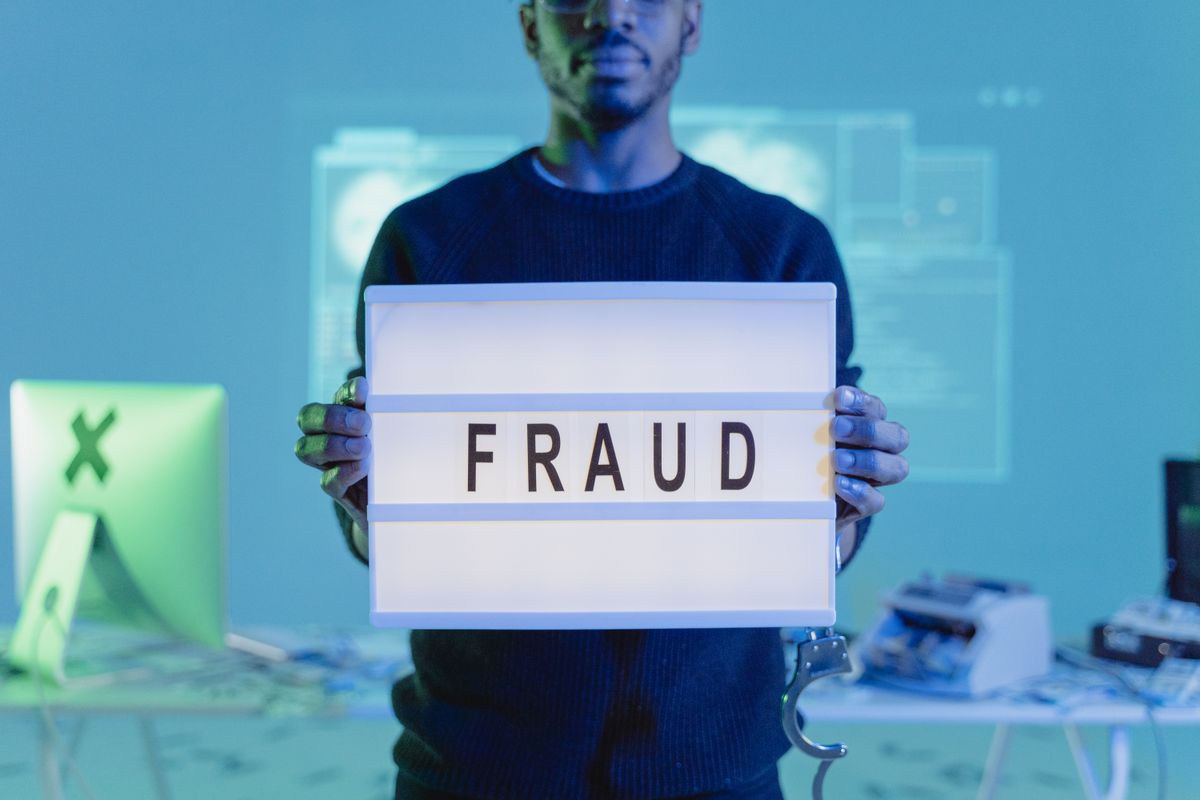
Protecting your online privacy means limiting how much of your information is collected and shared, and protecting the accounts that hold it — most account losses start with a phishing message or a reused password, and most privacy leaks start with permissions and settings nobody reviewed. The Cybersecurity and Infrastructure Security Agency's Secure Our World campaign reduces everyday security to four steps: recognize and report phishing, use strong passwords and a password manager, turn on multifactor authentication, and update software (CISA, Secure Our World). This guide builds on those steps and adds the privacy settings that control what apps, browsers and companies know about you.
Step 1: Lock Down Account Access
- Use a password manager to create a unique password for every account; CISA describes strong passwords and a password manager as easy ways to keep someone from logging in and stealing data or money.
- Turn on multifactor authentication. CISA explains that MFA requires two or more authenticators, so a stolen password alone is not enough, and that people who enable it are significantly less likely to be hacked (CISA, More than a Password).
- Prefer phishing-resistant methods such as passkeys or hardware security keys for email, banking and your password manager.
- Separate recovery paths: make sure the email and phone number used to recover important accounts are themselves well protected.
Step 2: Recognize Phishing and Impersonation

CISA notes that phishing tries to get you to open a harmful attachment or share personal information. Treat unexpected messages that create urgency — account problems, package issues, prizes, or requests from a "boss" or relative — as suspect. Go directly to the organization's website or app instead of clicking links, and verify requests for money through a separate channel. Report phishing to your email provider and, for workplace accounts, to your IT team.
Step 3: Keep Devices Updated
CISA's advice is not to delay software updates, because flaws in software can give criminals access and updates fix them. Turn on automatic updates for phones, computers, browsers, apps and your home router, and retire devices that no longer receive security updates.
Step 4: Review App and Browser Permissions
- Phone apps: review location, microphone, camera, contacts and photo access; set location to "while using" or off where possible.
- Browser: block third-party cookies, review site permissions, and remove extensions you do not use; extensions can read the pages you visit.
- Ad and tracking settings: limit ad personalization in your phone and account settings.
- Connected accounts: remove old apps that have access to your email, calendar or social media.
Step 5: Reduce What You Share

Information posted publicly — birthdays, addresses, pet names, travel plans — helps scammers guess security answers and craft convincing messages. Set social profiles to private, think before posting real-time locations, and use made-up answers to security questions stored in your password manager. Some data broker websites publish personal details; many offer opt-out processes, and some states give residents rights to request deletion.
Step 6: Use VPNs and Public Wi-Fi Wisely
A virtual private network encrypts traffic between your device and the VPN provider, which helps on untrusted public Wi-Fi. It does not make you anonymous and shifts trust to the VPN company, so choose a reputable provider and read its privacy policy. Most important websites already use encrypted connections; on public Wi-Fi, avoid entering sensitive information on sites without them and turn off automatic connection to open networks.
Step 7: Protect Your Credit and Identity
The Federal Trade Commission explains that a credit freeze stops anyone, including you, from opening new credit in your name, is free to place and lift, does not affect your credit score, and lasts until you lift it (FTC, Credit Freezes and Fraud Alerts). Place a freeze with Equifax, Experian and TransUnion, and lift it temporarily when you apply for credit.

Privacy and Security Checklist
| Area | Action |
|---|---|
| Passwords | Unique passwords in a password manager |
| Sign-in | MFA everywhere; passkeys or security keys for key accounts |
| Messages | Verify unexpected requests through another channel |
| Devices | Automatic updates on; retire unsupported devices |
| Permissions | Review app, browser and connected-account access |
| Sharing | Private profiles; fewer public details |
| Credit | Freeze at all three bureaus |
Protecting Family Members
Privacy settings matter for everyone in a household. Help children and older relatives set up password managers and MFA, explain common scams, and agree on a family code word to verify urgent requests for money that arrive by phone or message. On children's devices, review app permissions and parental controls together, and talk about what is safe to share online. For older relatives, scammers often impersonate government agencies, banks or grandchildren; remind them that legitimate organizations do not demand payment by gift card, wire transfer or cryptocurrency.
What to Do After a Data Breach Notice
- Change the password for the affected account and any account that used the same password.
- Turn on MFA if it was not already on.
- Watch for phishing messages that reference the breach.
- Consider a credit freeze if sensitive identifiers such as your Social Security number were exposed.
- Review statements and credit reports for unfamiliar activity.
Smart Home and Connected Devices
Cameras, speakers, doorbells and other connected devices collect data in your home. Change default passwords, keep firmware updated, review what each device records and shares, and remove devices you no longer use from your accounts. Placing smart devices on a separate guest network, if your router supports it, limits what a compromised device can reach.
A Quarterly Privacy Routine
Privacy is easier to maintain with a short routine every few months: review which apps have location and microphone access, check the devices signed in to your email and banking accounts, delete apps you no longer use, confirm that automatic updates are still on, and look over your password manager's security report for reused or weak passwords. Fifteen minutes on a calendar reminder keeps settings from drifting as you install new apps and devices.
Frequently Asked Questions
Is a VPN enough to protect my privacy?
No. It protects traffic on untrusted networks but does not stop tracking by sites you log in to, phishing or weak passwords.
Are hardware security keys worth it?
For email, financial and password-manager accounts, phishing-resistant methods such as security keys or passkeys offer strong protection.
How often should I review app permissions?
Every few months and after installing new apps or updating your phone's operating system.
Does freezing my credit hurt my score?
No. The FTC says a credit freeze does not affect your credit score.
Key Takeaways
- Unique passwords and MFA protect the accounts that hold your data.
- Verify unexpected messages and keep devices updated.
- Review permissions and share less publicly.
- Freeze your credit for free at all three bureaus.
Sources and References
- Cybersecurity and Infrastructure Security Agency, Secure Our World (read October 9, 2026).
- CISA, More than a Password: Multifactor Authentication (read October 9, 2026).
- Federal Trade Commission, Credit Freezes and Fraud Alerts (read October 9, 2026).