Direct answer
When a MacBook fan runs loudly and the computer feels hot, the primary cause is a rogue background process consuming maximum processor resources. The quickest way to address this is by identifying the process using Activity Monitor and terminating it. This immediately reduces processor load, allowing the internal fans to spin down and the chassis to cool. If ending the process does not resolve the behavior, physical airflow restrictions or hardware failures are usually the underlying issue.
What the symptom usually means
Thermal regulation on Apple Silicon and Intel MacBooks relies on internal fans and passive aluminum enclosures to dissipate heat. When heat builds up faster than it can escape, fans increase their rotation speed to force air across internal components. Several distinct issues trigger this response.
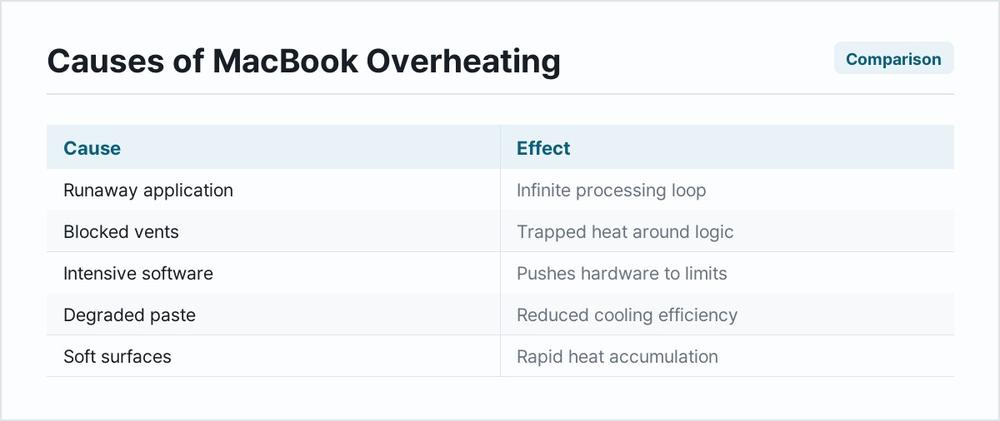
First, a runaway application or browser tab can trap the central processing unit in an infinite loop, driving utilization to maximum capacity. Second, blocked ventilation ports or accumulated internal dust prevent cool air from entering the chassis, trapping heat around the logic board. Third, running resource-intensive software such as 3D rendering engines, virtual machines, or unoptimized video editors naturally pushes hardware to its thermal limits. Fourth, degraded thermal paste between the processor and the heatsink can lose its conductivity over time, reducing cooling efficiency. Finally, operating the computer on soft surfaces like beds, couches, or laps restricts bottom intake vents, causing rapid heat accumulation.
Fix in this order
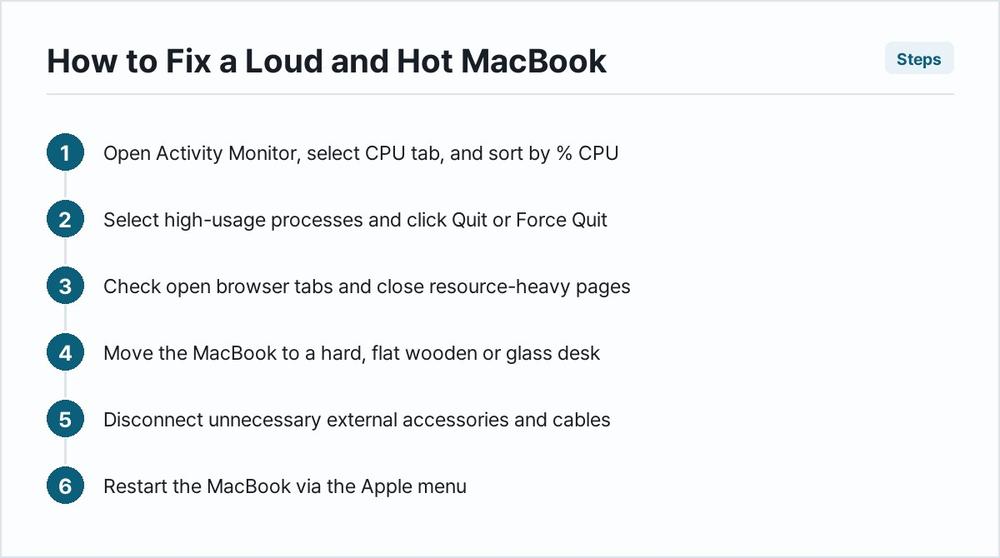
Identify and close resource-heavy applications using Activity Monitor. Open Finder, select Applications > Utilities > Activity Monitor. Click the CPU tab, then click the % CPU column header to sort processes from highest to lowest usage. Look for items consuming more than eighty percent of processor capacity. Select the offending process, click the Stop button (the X icon) in the upper-left toolbar, and choose Quit or Force Quit. This rules out temporary software loops and runaway background applications as the source of excess heat.
Check and close heavy browser tabs. Web browsers often host background scripts, video streams, or advertising trackers that consume vast amounts of processing power. Review open tabs for streaming media, web-based applications, or unresponsive pages. Close these tabs individually, or quit the browser entirely. This rules out specific web content or faulty browser extensions as the source of the thermal load.
Move the MacBook to a hard, flat surface. Pick up the laptop and place it on a clean wooden or glass desk. Ensure the rear hinge area, where exhaust vents are typically located, remains completely unobstructed. Never use the laptop on thick blankets, pillows, or thick clothing that blocks intake ports on the bottom case. This rules out external airflow restriction as the cause of trapped heat.
Disconnect unnecessary external accessories. Unplug external monitors, USB hubs, external hard drives, and charging cables unless battery power is critically low. External displays force the graphics subsystem to work harder, generating substantial heat. This rules out peripheral power draw and secondary display processing strain as the trigger for fan noise.
Restart the MacBook. Select the Apple menu in the top-left corner of the screen, then select Restart. Allow the system to shut down completely and boot back to the desktop. Do not immediately reopen all previous applications. This rules out temporary operating system caching anomalies, stuck background daemons, and minor kernel state errors.
Update macOS and installed applications. Select Apple menu > System Settings > General > Software Update. Install any pending operating system updates or security patches. And check the App Store or individual software developer websites for updates to heavy professional applications. This rules out known software bugs, memory leaks, and poor operating system optimization.
Boot into Safe Mode to test baseline behavior. Shut down the Mac completely. For Apple Silicon models, press and hold the power button until the startup options screen appears, hold the Shift key, and click Continue in Safe Mode. For Intel models, restart the Mac while holding the left Shift key. Test the system behavior in Safe Mode, where third-party startup items and non-essential fonts are disabled. This rules out third-party background utilities, login items, and kernel extensions as the root cause of the continuous thermal load.
Reset the System Management Controller (SMC) on Intel MacBooks. If the MacBook uses an Intel processor, shut it down. Press and hold the internal power button for ten seconds, then release it. Wait a few seconds, then press the power button to turn it on. For Intel portables with a T2 security chip, shut down the Mac, press and hold the right Shift, left Control, and left Option keys for seven seconds, then press and hold the power button as well while keeping the other three keys held down for another seven seconds. Release all keys and press the power button. This rules out corrupted power and thermal management firmware configurations. Note: Apple Silicon models manage thermal control automatically through boot firmware and do not have a manual SMC reset procedure.
Reset the NVRAM or PRAM on Intel MacBooks. Shut down the Mac, then turn it on and immediately press and hold these four keys together: Option, Command, P, and R. Release the keys after about twenty seconds, during which your Mac might appear to restart or you may hear a second startup sound. This rules out corrupted low-level hardware configuration memory affecting fan response curves.
Back up data and reinstall macOS. Warning: Reinstalling the operating system or formatting storage can result in data loss if something fails. Back up all important files to an external drive or cloud storage using Time Machine before proceeding. Shut down the Mac, enter Recovery mode (holding the power button on Apple Silicon or Command-R on Intel), select Reinstall macOS, and follow the on-screen instructions. This rules out deep operating system corruption, damaged system files, and pervasive software misconfiguration.
When it is hardware
When software troubleshooting fails to silence the fans or lower operating temperatures, the issue is typically physical. Hardware causes include accumulated internal dust matting over the heatsink fins, dried thermal paste losing its conductive properties, failing fan bearings causing mechanical friction, or a damaged temperature sensor reporting false readings to the logic board.
To test for a hardware issue, observe whether the fan spins at maximum speed immediately upon startup, even when the computer is completely cold. If the fans roar loudly during a cold boot before any applications open, a temperature sensor has likely failed, or the system has entered a protective failsafe mode due to a hardware fault. Another indicator is a rattling or clicking sound emanating from the fan casing, which points directly to physical blade obstruction or worn motor bearings. If hardware failure is suspected, schedule an appointment with an authorized repair provider for diagnostic testing and component replacement.
| Symptom | Likely cause | What to do |
|---|---|---|
| Fan runs loud only when web browser is open | Heavy JavaScript loops or unoptimized media ads | Close heavy tabs, update browser, or switch to a different browser engine |
| Fan runs loud immediately upon waking from sleep | Stuck background synchronization or indexing daemon | Restart the Mac and check Spotlight indexing status in Activity Monitor |
| Fan is loud and chassis is hot while laptop is idle | Runaway system process or malware infection | Inspect Activity Monitor for high CPU usage; run a malware scan |
| Fan makes clicking or grinding mechanical noises | Worn fan bearings or trapped debris inside casing | Have the hardware inspected and the fan assembly replaced by a technician |
| Fan blows constantly at maximum speed from cold boot | Defective temperature sensor or SMC firmware error | Reset system management controls or seek hardware diagnostic service |
| Fan activates heavily during video calls | High video processing load combined with poor ventilation | Close background applications, lower camera resolution, and use a desk stand |
How to stop it coming back
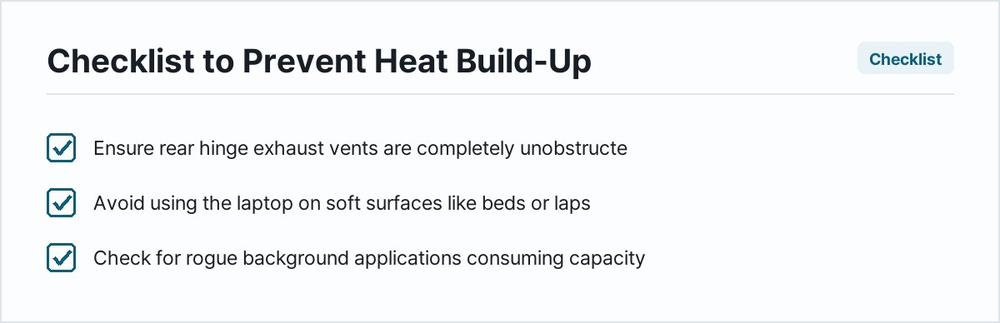
Preventing future thermal spikes requires maintaining good computing habits and keeping the machine physically clean. Avoid placing the laptop on soft surfaces that block the intake vents beneath the chassis. Clean the exterior vents periodically using a dry, lint-free cloth, and refrain from eating or drinking near the computer to prevent crumbs and liquid from entering the keyboard housing. Manage login items to prevent dozens of background utilities from launching automatically every time the computer starts up. Finally, keep operating systems and professional applications updated to benefit from ongoing performance optimizations and refined thermal management algorithms.
Why does my MacBook get hot when plugged into power?
Charging the battery naturally generates heat within the internal power circuitry. When power delivery combines with heavy processing tasks, the internal temperature rises quickly, prompting the fans to activate to protect the battery and logic board.
Is it safe to use my MacBook while the fan is loud?
Yes, temporary fan noise is a normal safety feature designed to cool the processor during heavy workloads. Still, if the fan remains at maximum speed continuously while the computer is idle, it indicates an abnormal condition that requires investigation.
Can I use third-party fan control software?
While utility applications allow manual adjustment of fan speeds, they bypass the operating system's built-in thermal protections. Forcing fans to remain at low speeds during heavy tasks can cause internal components to overheat and suffer permanent damage.
How often should internal dust be cleaned out?
Under normal indoor conditions, professional internal cleaning is rarely necessary unless the computer is used in dusty environments, workshops, or around pet hair. If you notice persistent high temperatures despite clean external vents, professional internal inspection is recommended.
Does using an external monitor always make the fan loud?
Driving high-resolution external displays requires extra graphical processing power, which naturally increases heat output. The fan will often run more frequently when an external display is connected, especially during graphical tasks or video playback.