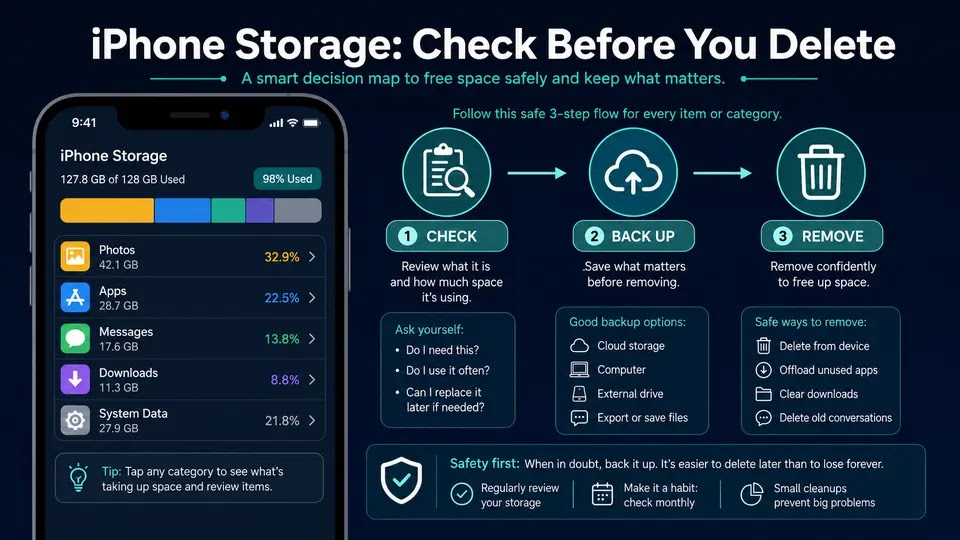
An iPhone that says “Storage Full” does not need a random cleaning spree. The safest fix is to identify what is actually consuming space, protect anything irreplaceable, and remove the easiest-to-recover items first.
This guide follows that order. Menu names can vary slightly by iOS version, but the storage screen is generally under Settings > General > iPhone Storage.
First: device storage is not iCloud storage
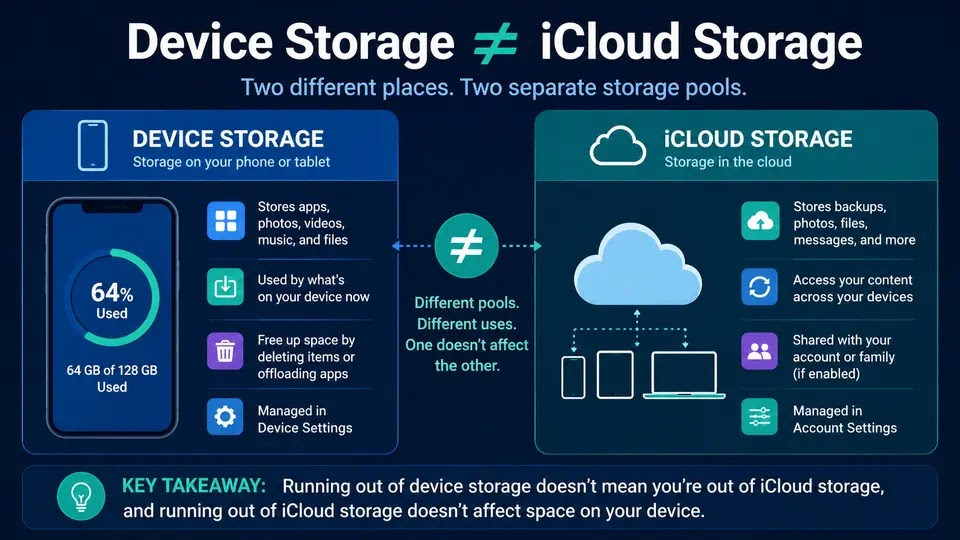
Your iPhone’s built-in storage and your iCloud allowance are separate pools. Buying more iCloud storage does not physically enlarge the phone. iCloud can help reduce local photo use when iCloud Photos and Optimize iPhone Storage are configured, but it is not a one-tap replacement for device cleanup.
Before deleting photos, messages, or files, verify that the material you care about exists in a current backup or another confirmed location. Do not assume that “synced” always means “independently backed up”: deleting a synced item can remove it from other devices too.
1. Find the real storage offenders
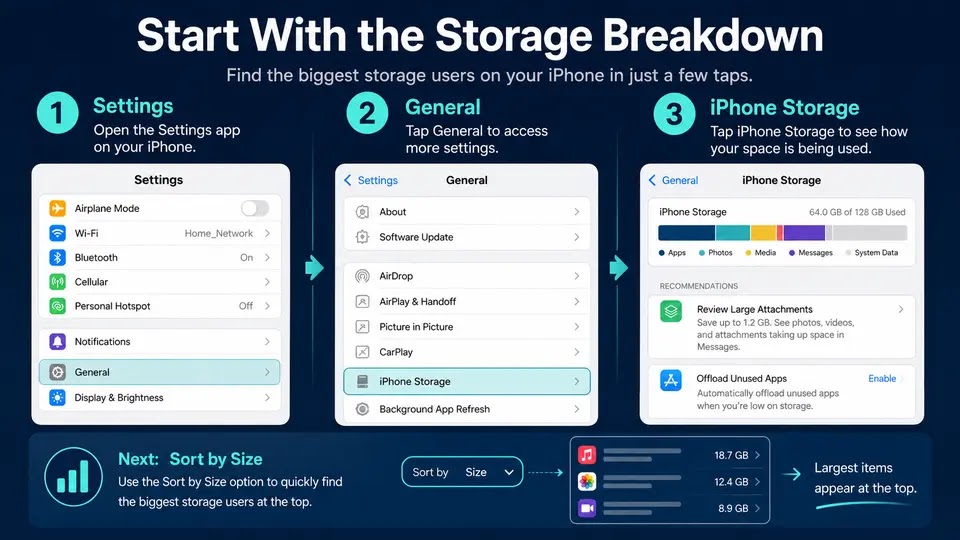
Open Settings > General > iPhone Storage and wait for the category bar and app list to finish calculating. Start with the largest categories and apps rather than hunting for tiny files.
Apple may show recommendations such as reviewing large attachments or offloading unused apps. Read each recommendation before enabling it. Cached and temporary data can also change after the phone has had time to recalculate.
2. Remove downloads you can get again
Downloaded movies, television episodes, podcasts, music, maps, and files are usually the lowest-risk targets because you can download them again. Check the Downloads folder in Files and the download sections inside streaming apps.
Remove only the offline copy when the app offers that choice. Confirm that the item still exists in your account or cloud library before deleting a unique local file.
3. Offload an app before deleting it
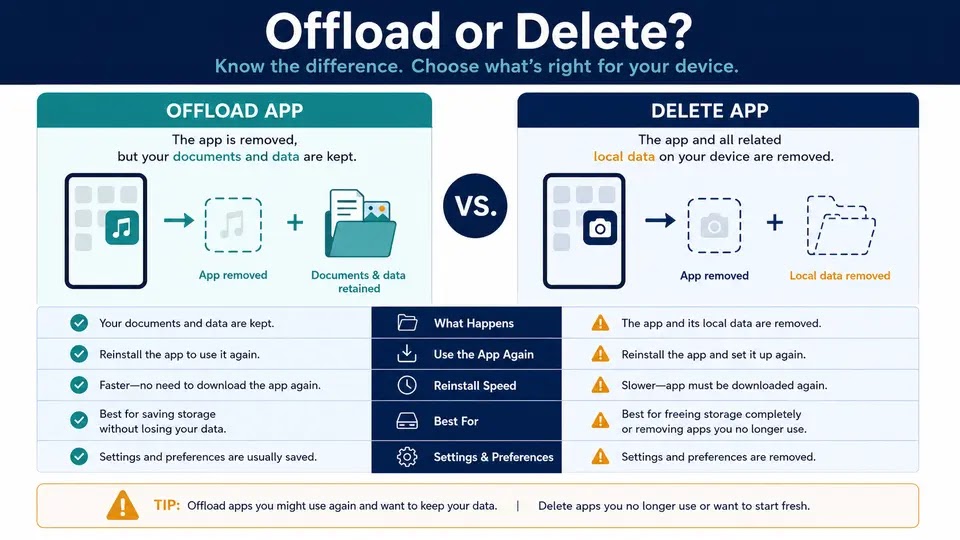
Offloading removes the app itself while keeping its documents and data, so reinstalling can restore the app around that retained data. Deleting an app removes the app and its associated local data. The distinction matters for apps that store projects, recordings, scans, or game progress only on the device.
For an app you rarely use but may need again, open its entry in iPhone Storage and consider Offload App first. Use Delete App only after checking whether its important data is synced or exported.
4. Review photos and videos carefully
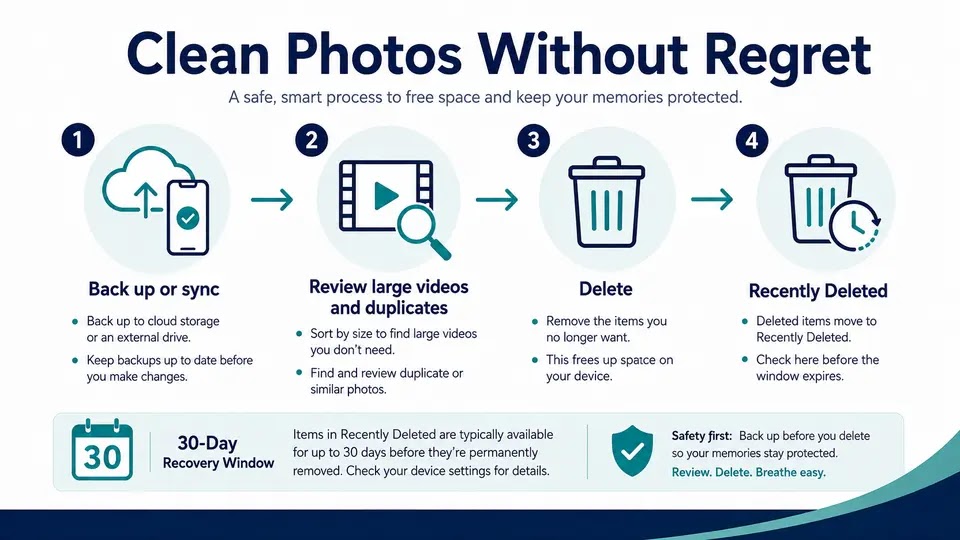
Large videos, screen recordings, bursts, and duplicates can return substantial space. Begin with obvious throwaways rather than mass-selecting the library.
If you use iCloud Photos, edits and deletions sync across devices. Apple says deleted photos and videos move to Recently Deleted and can generally be recovered for 30 days, but that recovery window should not replace a verified backup. If you need local originals elsewhere, export or copy them before cleanup.
When iCloud Photos is appropriate for your setup, Optimize iPhone Storage can retain smaller device versions while originals remain in iCloud. It requires adequate iCloud space and time for syncing.
5. Check Messages and large attachments
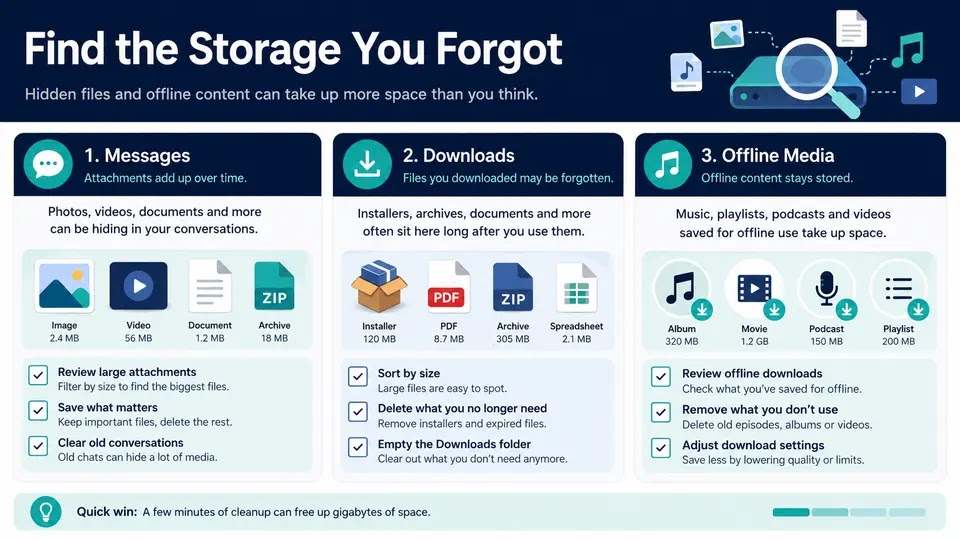
Conversation attachments can quietly accumulate for years. Review large videos, repeated photos, GIFs, voice messages, and documents. Delete individual attachments where possible instead of erasing an entire conversation.
If Messages in iCloud is enabled, deletions can synchronize. Preserve legal, financial, family, or work records before removing them.
6. Clear browser data only when the tradeoff is worth it
Safari website data can consume space, but clearing history and website data can sign you out of sites and remove useful browsing state. Apple’s current path is Settings > Apps > Safari > Clear History and Website Data. You can also manage website data from Safari’s advanced settings.
This is usually a later step, not the first move. It often saves less space than removing large offline videos or unused apps.
7. Recheck free space
Restart the iPhone after a meaningful cleanup, then revisit iPhone Storage and allow it to recalculate. Apple recommends keeping at least 1 GB free to help avoid slowdowns, but a larger working margin is more comfortable for updates, photos, and temporary files.
If “System Data” remains unusually large, update iOS when possible, restart, and allow background maintenance time. Avoid third-party “cleaner” apps that promise access to protected system storage.
A safe cleanup order
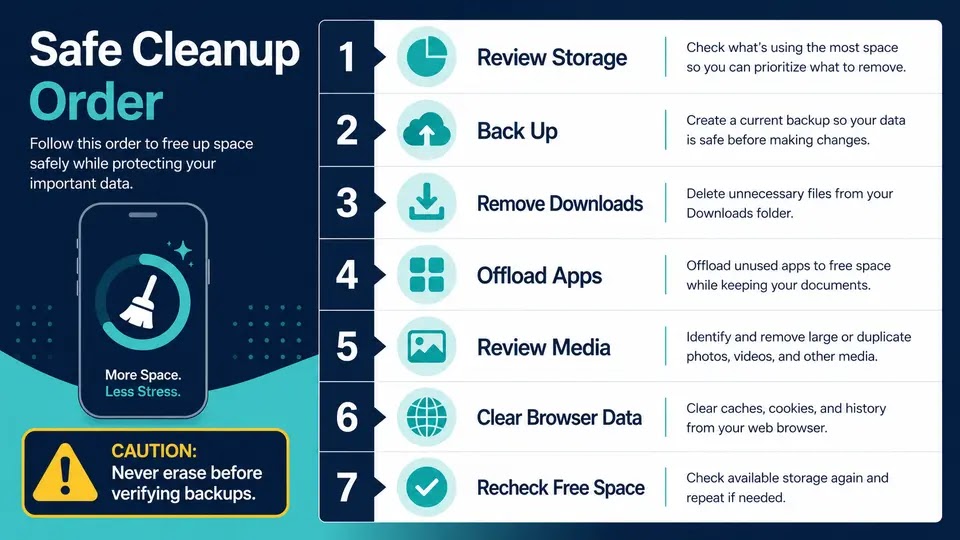
- Verify a current backup or independent copy.
- Review the iPhone Storage breakdown.
- Remove re-downloadable offline media and downloads.
- Offload unused apps.
- Review large photos, videos, and message attachments.
- Clear browser data only if needed.
- Restart and measure again.
What not to delete impulsively
- A photo library before checking sync and backup status
- App data for authenticator, recording, scanning, finance, or project apps
- Message threads containing records you may need
- Files marked as local-only
- Anything merely because a third-party cleaner labels it “junk”
Official Apple references
- How to check storage on iPhone and iPad
- Manage photo and video storage
- Delete photos on iPhone or iPad
- Delete Safari history, cache, and cookies
- Device storage versus iCloud storage
- If iPhone or iPad is running slow
The goal is not to delete the most data. It is to recover enough space while keeping irreplaceable data intact.