Direct answer
When an Android phone reports that storage is completely full, but reviewing the file manager reveals no large personal files left to delete, the device is usually storing invisible application caches, broken download queues, or massive system logs. The quickest way to address this without losing personal data is to restart the phone into Safe Mode to temporarily disable third-party background processes, and then clear the system-wide app cache via the primary device settings menu. This rules out normal media clutter and immediately isolates whether the space is being consumed by hidden application data or operating system anomalies.
What the symptom usually means
Storage bars inside mobile settings menus often group data into opaque categories like "Other" or "System," making it difficult to pinpoint what is actually taking up gigabytes of space. Understanding the root causes helps prevent indiscriminate deletion of important files.
- Hidden app caches: Streaming services, social media feeds, and web browsers store gigabytes of temporary data deep within internal system directories where standard file managers cannot easily see them.
- Orphaned data directories: When applications are uninstalled manually through file managers rather than properly via system settings, they often leave behind empty or partially filled folders containing heavy configuration data and database remnants.
- Corrupted media databases: The Android media scanner can experience indexing loops, creating duplicate thumbnail caches and invisible temporary logs that multiply until they consume every available megabyte of internal memory.
- Stuck download queues: Large software updates, system patches, or offline video downloads that failed mid-transfer often leave hidden partial files in the root download directory that do not appear in user-facing download apps.
- Cloud sync caches: Cloud backup applications configured to sync heavy video libraries locally can trap massive temporary staging files on the physical device while waiting for upload confirmation.

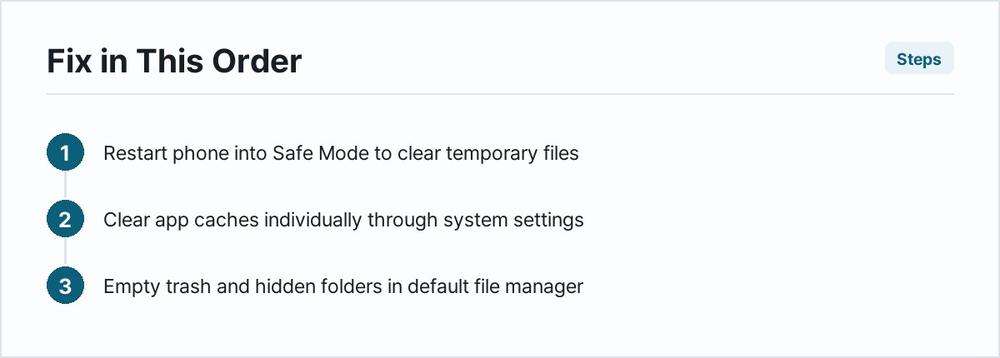
Fix in this order
-
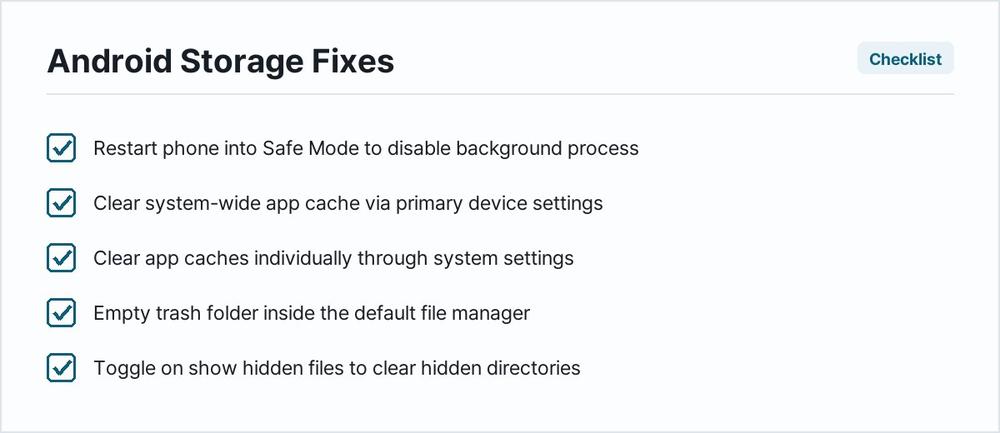
Restart the phone to clear temporary session files.
Press and hold the power button until the power menu appears, then tap and hold the restart option until a prompt appears asking to boot into Safe Mode. Confirm the prompt. Once the device boots up, check the storage menu again. This simple action rules out active RAM swap files, temporary rendering bugs, and stuck system processes that are temporarily misreporting storage capacity or locking temporary files in place.
Clear app caches individually through system settings.
Open Settings > Apps > See all apps. Tap an app known for heavy media use, such as a browser or social media platform, then tap Storage & cache > Clear cache. Repeat this for other large apps. This step rules out routine application bloat and cached web assets as the source of the missing space without deleting any user login tokens, saved games, or personal documents.
Locate and delete hidden trash folders inside the default file manager.
Open the device file manager application, tap the menu icon, and select Trash or Bin. Permanently empty this folder. Next, check hidden directories by tapping Settings within the file manager and toggling on "Show hidden files." Look inside internal storage for folders starting with a period, such as.thumbnails or.cache, and clear their contents. This rules out deleted items that are still occupying physical storage space while waiting out their recovery grace period.
Review and clear the system download directory.
Open Settings > Storage > Files or use the dedicated Files by Google app, then tap Downloads. Sort files by size from largest to smallest. Look for unfinished zip archives, interrupted video files, or duplicate software installers. Delete anything unnecessary. This rules out corrupted background downloads and forgotten installer packages that bypassed the standard gallery view.
Clear system-level app data for misbehaving media players and editors.
Open Settings > Apps, locate apps that handle large local video or audio files, tap Storage & cache, and select Clear storage. Warning: Clearing app data will delete all locally saved offline content, downloaded playlists, and app customizations within that specific application. Back up any important offline media or export configuration files before proceeding. This rules out localized database corruption and runaway indexing loops within heavy utility applications.
Use a trusted storage analysis utility to scan hidden partitions.
Download a reputable storage analyzer tool from the official app store, such as DiskUsage or Files by Google. Run a full storage scan to visualize every folder on the internal drive by physical block size. Inspect any large, unlabelled blocks taking up space in the system root directories. This rules out deep file system fragmentation and hidden container files left behind by older software versions.
Perform a factory data reset to clear all persistent system anomalies.
Open Settings > System > Reset options > Erase all data (factory reset). Warning: This action completely wipes all user data, photographs, contacts, downloaded applications, and accounts from the internal storage. You must back up all precious photographs, documents, and important credentials to an external computer or cloud service before executing this step. This is the final software troubleshooting step and rules out deep, unfixable operating system corruption, persistent low-level partition errors, and encrypted cache bugs that resist granular deletion methods.
When it is hardware
When software troubleshooting fails to recover storage space, the issue usually stems from physical hardware failure within the device's internal flash memory controller or NAND storage chips. Over time, continuous read and write cycles degrade flash storage, causing sectors to lock up or fail. When flash memory begins to fail internally, the storage controller may map out bad sectors while incorrectly reporting that the drive remains completely full due to damaged partition tables.
To test for physical storage failure, attempt to copy a large batch of files from a computer to the phone via a USB data cable. If the transfer immediately fails with input/output errors, or if files successfully transfer but spontaneously vanish or revert to zero bytes after a device reboot, the internal storage hardware is failing. Another hardware symptom is a device that enters a continuous bootloop whenever the internal storage capacity drops below a certain threshold because the operating system cannot write temporary startup logs to the degraded flash memory controller. At this stage, software fixes are ineffective, and the device requires professional motherboard repair or replacement.
Storage Symptom Reference

| Symptom | Likely Cause | What to do |
|---|---|---|
| Storage full alert persists after deleting all photos and videos | Hidden application caches and internal thumbnail databases | Clear individual app caches via Settings > Apps and empty the file manager trash bin. |
| "Other" category takes up fifty gigabytes of space | Orphaned files from uninstalled apps and sync logs | Run a dedicated storage analysis app to find and delete hidden root folders. |
| Downloads folder appears empty, but storage remains full | Hidden partial downloads or invisible system log files | Enable hidden files in the file manager and check system directories for temp files. |
| Phone freezes and storage fills up spontaneously while idle | Corrupted media scanner loop generating infinite thumbnails | Clear storage data for Media Storage via system application settings and restart. |
| Files reappear immediately after being deleted | Failing NAND flash storage controller or bad memory sectors | Backup data immediately; perform a factory reset to test for hardware degradation. |
| Device storage reports negative or impossible values | Corrupted partition allocation table in the operating system | Boot into recovery mode, clear system cache partition, or execute a factory reset. |
How to stop it coming back
Preventing sudden storage exhaustion requires managing how applications handle background data and temporary files over time. Configure web browsers, streaming services, and social media platforms to automatically limit their cache sizes within their respective in-app settings menus rather than letting them expand indefinitely. Disable automatic offline downloading for media subscriptions unless specifically needed for travel. Regularly review the cloud backup settings for photo and video apps to ensure that media files are securely uploaded and immediately purged from the local staging cache rather than lingering on the device indefinitely. Finally, avoid installing third-party cleaner applications that promise to boost performance, as these utilities often generate their own heavy advertising caches and background tracking logs that worsen the storage problem they claim to solve.
Why does Android say storage is full when my file manager shows empty folders?
Android separates user-accessible media from system-level directories, hidden caches, and application databases. The standard file manager often hides these system partitions to protect critical operating system files from accidental deletion, meaning heavy hidden files can consume storage while leaving user folders looking completely empty.
How do I find out what is taking up space in the Other storage category?
Because the default settings menu groups miscellaneous files into a vague category, you need to install a trusted third-party storage analyzer application from the official app store. These tools scan every partition on the drive and display files proportionally by size, allowing you to easily locate bulky hidden folders and old system backups.
Is it safe to delete the contents of the Android data folder?
The Android data folder contains configuration files, saved game states, and offline caches for all installed applications. Deleting entire subfolders inside this directory will erase app settings and saved progress. Only clear individual app caches through the main settings menu or delete subfolders associated with applications you have already uninstalled.
Can a full storage condition cause my phone to run slowly or crash?
Yes. The operating system requires a certain percentage of free internal storage to act as virtual memory swap space and to write temporary system logs during normal operation. When storage reaches absolute capacity, background processes fail, apps crash unexpectedly, and the device can become trapped in a continuous bootloop.
Why do deleted files sometimes not free up space immediately?
Many file managers and cloud synchronization services use a temporary trash or recycle bin feature that holds deleted items for a designated grace period before permanently purging them. applications often keep file handles open in the background until the device is fully restarted, delaying the actual release of storage blocks.