If Bluetooth headphones, a mouse, keyboard, or game controller keeps disconnecting from a Windows 11 PC, the fastest fix is not to reinstall everything at once. Start with power, interference, and pairing checks, then move to drivers and Windows services.
This guide follows a low-risk troubleshooting order based on current Microsoft support guidance. After each step, use the device for a few minutes before moving on. That makes it easier to identify the actual cause.
Quick diagnosis: what does the disconnect pattern mean?
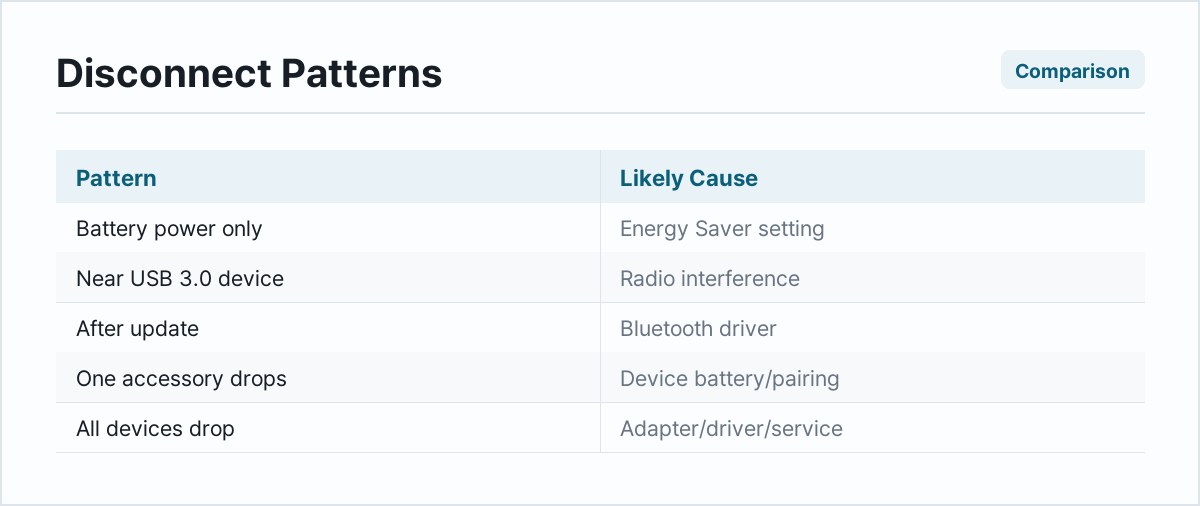
- Disconnects only on battery power: Energy Saver or another power-management setting is likely involved.
- Audio drops near a USB 3.0 device: Radio interference is possible.
- Started after a Windows or driver update: Update, reinstall, or roll back the Bluetooth driver.
- Only one accessory disconnects: Check that device's battery, firmware, and pairing record first.
- Every Bluetooth device disconnects: Focus on the PC's adapter, driver, Windows service, and power settings.
1. Charge the Bluetooth device and reduce the distance
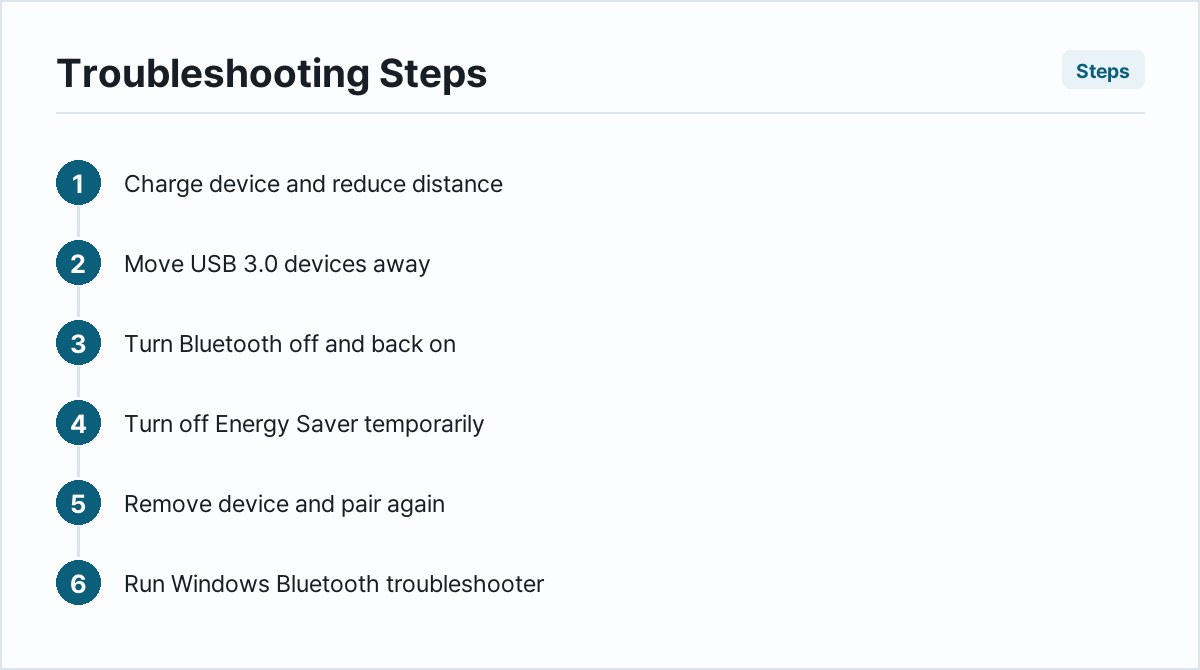
Low battery power can make some accessories fail to maintain a stable connection. Fully charge the device, move it close to the computer, and switch it off for about 10 seconds before turning it on again.
If the accessory stays connected at close range but fails across the room, the problem may be signal strength or interference rather than Windows.
2. Move USB 3.0 devices away
Microsoft notes that unshielded USB devices connected to USB 3.0 ports can interfere with nearby Bluetooth connections. If a wireless dongle, external drive, hub, webcam, or cable sits next to the Bluetooth adapter, temporarily unplug it or move it to another port.
This is especially worth checking on small laptops and desktop PCs that use a tiny USB Bluetooth adapter.
3. Turn Bluetooth off and back on
- Open Start > Settings > Bluetooth & devices.
- Turn Bluetooth off.
- Wait 10 seconds.
- Turn Bluetooth on and reconnect the accessory.
This clears a temporary radio or connection state without deleting the pairing.
4. Turn off Energy Saver temporarily
If disconnects happen mainly when the laptop is unplugged, select the battery area on the taskbar and check whether Energy Saver is active. Turn it off temporarily and test Bluetooth again.
If the problem stops, review your battery settings rather than repeatedly pairing the device. Microsoft specifically lists battery-saving behavior as a possible cause of recurring Bluetooth disconnections.
5. Remove the device and pair it again
- Go to Settings > Bluetooth & devices > Devices.
- Find the accessory and select the three-dot menu.
- Select Remove device.
- Restart the accessory and put it in pairing mode.
- Select Add device > Bluetooth and pair it again.
Re-pairing replaces an old or damaged pairing record. Do this before reinstalling the PC's Bluetooth adapter.
6. Run the Windows Bluetooth troubleshooter
On Windows 11, open the Get Help app, search for Bluetooth troubleshooting, and run the automated diagnostic. Microsoft recommends this as an early step because it can detect common configuration and service problems without requiring manual changes.
7. Check Windows Update, including optional driver updates
- Open Settings > Windows Update.
- Select Check for updates.
- Install relevant updates and restart the PC.
- Also review Advanced options > Optional updates for hardware drivers when available.
A restart matters. A downloaded driver may not take effect until Windows reloads the Bluetooth stack.
8. Update the Bluetooth adapter driver
- Right-click Start and open Device Manager.
- Expand Bluetooth.
- Right-click the Bluetooth adapter, not just the headphones or mouse.
- Select Update driver > Search automatically for drivers.
- Restart Windows after installation.
If Windows says the best driver is already installed, check the support page for the PC manufacturer. Laptop manufacturers sometimes provide a newer or device-specific Bluetooth package that Windows Update has not offered yet.
9. Reinstall the Bluetooth adapter
Use this step only after the simpler checks above.
- Open Device Manager and expand Bluetooth.
- Right-click the Bluetooth adapter and select Uninstall device.
- Restart the PC.
Windows normally detects the adapter and reinstalls its driver during restart. If it does not return, use Action > Scan for hardware changes in Device Manager or install the driver from the computer manufacturer's website.
10. Roll back a driver if the problem began after an update
- In Device Manager, right-click the Bluetooth adapter and open Properties.
- Open the Driver tab.
- Select Roll Back Driver if the button is available.
- Follow the prompts and restart Windows.
Do not roll back a working driver merely because the option exists. This step is most appropriate when the connection was stable until a recent driver or Windows update.
What not to do first
- Do not download drivers from unofficial driver-collection websites.
- Do not edit the Windows Registry before basic hardware, power, pairing, and driver checks.
- Do not uninstall several unknown devices in Device Manager.
- Do not assume the PC is at fault if only one aging accessory disconnects.
If Bluetooth still disconnects
Test a second Bluetooth accessory. If two unrelated devices disconnect from the same computer, the PC adapter or its driver is the stronger suspect. If the original accessory also disconnects from another phone or computer, the accessory itself is more likely to be faulty.
Desktop users with an internal antenna should also confirm that the Wi-Fi/Bluetooth antenna supplied with the motherboard is attached correctly. Without it, short range and unstable connections are common.
Official references
- Microsoft: Bluetooth keeps disconnecting in Windows
- Microsoft: Fix Bluetooth problems in Windows
- Microsoft: Update Bluetooth drivers in Windows
Bottom line
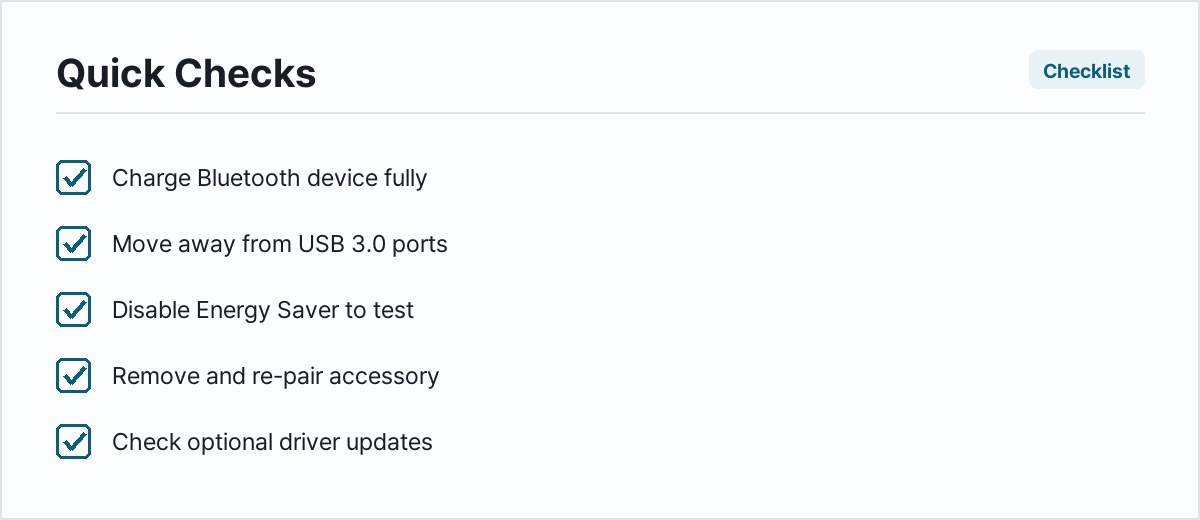
For most recurring Windows 11 Bluetooth drops, the useful order is: charge and move the device closer, remove USB interference, reset Bluetooth, disable Energy Saver for testing, re-pair the accessory, then update or reinstall the adapter driver. Testing after each step is more effective than changing everything at once.
Updated August 2026. Windows menus can vary slightly by device manufacturer and Windows build.