USB Not Recognized Fix Windows 11 Solutions
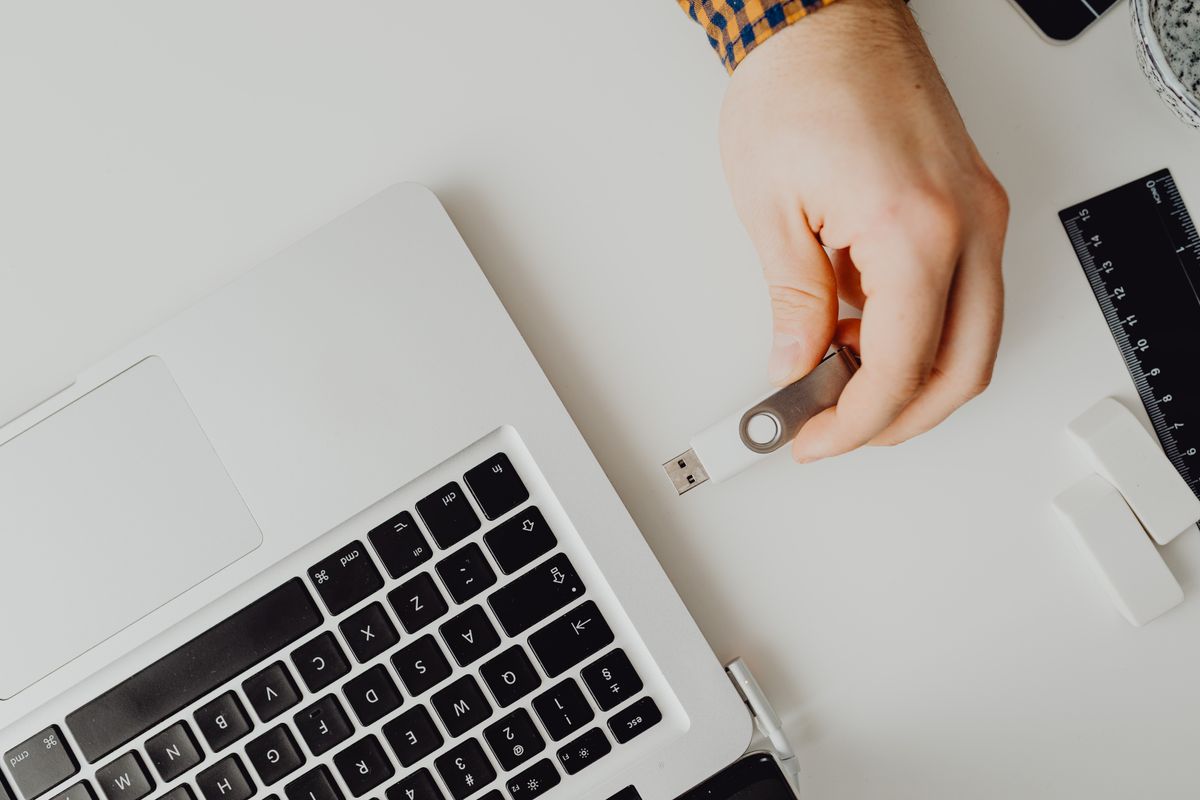
When Windows 11 says a USB device is not recognized, the cause is usually one of four things: the cable or port, power to the device, a driver problem, or the device itself. The quickest way to a fix is to rule them out in that order, starting with the free, physical checks and moving to Device Manager and power settings only if needed. This guide walks through each step, explains common error messages, and helps you decide when the device itself has failed.
Step 1: Quick Physical Checks
- Unplug and reconnect the device, then try a different USB port, preferably one directly on the computer rather than on a hub or the front panel of a desktop.
- Try another cable. Cables fail more often than devices, and some USB cables only carry power, not data.
- Try the device on another computer. If it fails there too, the device or cable is likely at fault.
- Restart Windows. A full restart clears many temporary detection problems.
- Remove the hub. Unpowered hubs may not supply enough power for drives or other power-hungry devices; use a powered hub or connect directly.
Step 2: Check Device Manager
Right-click Start and open Device Manager. Look under Universal Serial Bus controllers, Disk drives and Other devices for an entry with a warning icon or "Unknown USB Device". Then try, in order:
- Scan for hardware changes from the Action menu.
- Update driver by right-clicking the device; let Windows search automatically, or install the manufacturer's driver from its support site.
- Uninstall device, then unplug the device, restart, and plug it back in so Windows reinstalls the driver.
- Roll back driver from the device's Properties > Driver tab if the problem started after a driver update.
Step 3: Install Windows and Optional Driver Updates
Open Settings > Windows Update, check for updates, and look under Advanced options > Optional updates for driver updates. Chipset and USB controller drivers from your PC or motherboard manufacturer's support page can also fix detection problems, especially on newer hardware.
Step 4: Adjust USB Power Management
Windows can turn off USB ports to save power, which sometimes stops devices from reconnecting properly.
- USB selective suspend. In Control Panel > Power Options, open your plan's advanced settings and, under USB settings, try disabling USB selective suspend.
- Device power management. In Device Manager, open each USB Root Hub's Properties > Power Management tab and clear "Allow the computer to turn off this device to save power".
Test the device after each change, and switch settings back if they don't help, since they can slightly reduce battery life on laptops.
Step 5: Check Storage Devices in Disk Management
If a USB drive connects but doesn't appear in File Explorer, open Disk Management (right-click Start). A drive that shows up without a letter can be given one with "Change Drive Letter and Paths". A drive shown as unallocated or RAW may need formatting, which erases data, so recover important files first if possible.
![Windows 11 Power Options control panel showing USB selective suspend setting disabled]<br><br>](/img/blog/usb-not-recognized-fix-windows-11-troubleshooting-guide/card-aa383a8b96c5.jpg)
Common Error Messages
- "USB device not recognized" / "Device Descriptor Request Failed": Windows could not read basic information from the device. Try another port and cable, uninstall the device in Device Manager, and restart.
- "Power surge on the USB port": the device drew too much power. Unplug it, use a powered hub, and check the cable for damage.
- Device keeps disconnecting: check the cable, power management settings, and whether the port is loose.
When the Device Has Failed
If the device doesn't work on any computer, with any cable, it has probably failed. For storage devices with important data, stop trying repeated fixes that could make recovery harder and consider a professional data recovery service. Check whether the device is still under the manufacturer's warranty before paying for repair.
Troubleshooting Flow at a Glance
| Symptom | Most likely cause | Try first |
|---|---|---|
| Works on another PC | Driver or port on this PC | Device Manager: uninstall and reconnect; update drivers |
| Fails everywhere | Cable or device | Different cable; then suspect the device |
| Works directly, fails on hub | Power | Powered hub or direct connection |
| Drive detected but no letter | Partition or drive letter | Disk Management |
| Disconnects randomly | Power saving or loose connection | Power management settings; check port |
![Close-up macro photograph of a damaged USB-C port showing bent internal connection pins]<br><br>](/img/blog/usb-not-recognized-fix-windows-11-troubleshooting-guide/card-9b1dcd13f577.jpg)
Special Cases: Keyboards, Phones and Docking Stations
Keyboards and mice. If a USB keyboard or mouse stops responding, try it in a port on the back of a desktop or the other side of a laptop, and check Bluetooth or wireless receivers separately, since they behave differently. A wireless receiver needs to be paired with its device; the manufacturer's utility usually has a re-pair option.
Phones. When a phone charges but doesn't appear in File Explorer, unlock it and check the USB notification on the phone: many phones default to charge-only and need you to choose file transfer. Use the cable that came with the phone if possible, since some cheap cables are power-only.
Docking stations and USB-C hubs. Docks often need their own firmware and drivers from the dock or laptop manufacturer. If devices work when plugged into the laptop directly but not through the dock, update the dock's firmware, use its own power adapter, and check the laptop maker's support page for compatibility notes.
After a Windows update. If several USB devices stopped working at once after an update, check Windows Update for follow-up fixes, update chipset drivers from the PC manufacturer, and use System Restore as a last resort if a restore point from before the update exists.
Prevention
- Eject storage devices with "Safely remove hardware" before unplugging.
- Avoid bending cables sharply at the connector, and replace frayed cables.
- Keep ports clean; blow out dust gently rather than inserting metal objects.
- Keep backups of anything stored only on a USB drive.
Frequently Asked Questions
How do I fix a USB device that says Device Descriptor Request Failed?
Try a different port and cable, uninstall the device in Device Manager, restart, and reconnect. Update chipset drivers if it continues.
Why does my USB drive show in Device Manager but not in File Explorer?
It may need a drive letter or may have an unreadable file system. Check Disk Management.
Can a Windows update cause USB problems?
Occasionally a driver update causes issues; rolling back the driver or installing the manufacturer's driver usually fixes it.
Is it safe to disable USB selective suspend?
Yes, it's a power setting. It may slightly increase power use on laptops.
If none of these steps work and the device works on other computers, note the exact error message and the device's name in Device Manager before contacting the PC manufacturer's support. That information, plus a list of what you have already tried, usually shortens the support conversation considerably and avoids repeating the basic checks.
Key Takeaways
- Start with ports, cables and a restart.
- Use Device Manager to reinstall or update drivers.
- Adjust USB power settings if devices disconnect.
- Use Disk Management for drives that connect but don't appear.