Direct answer
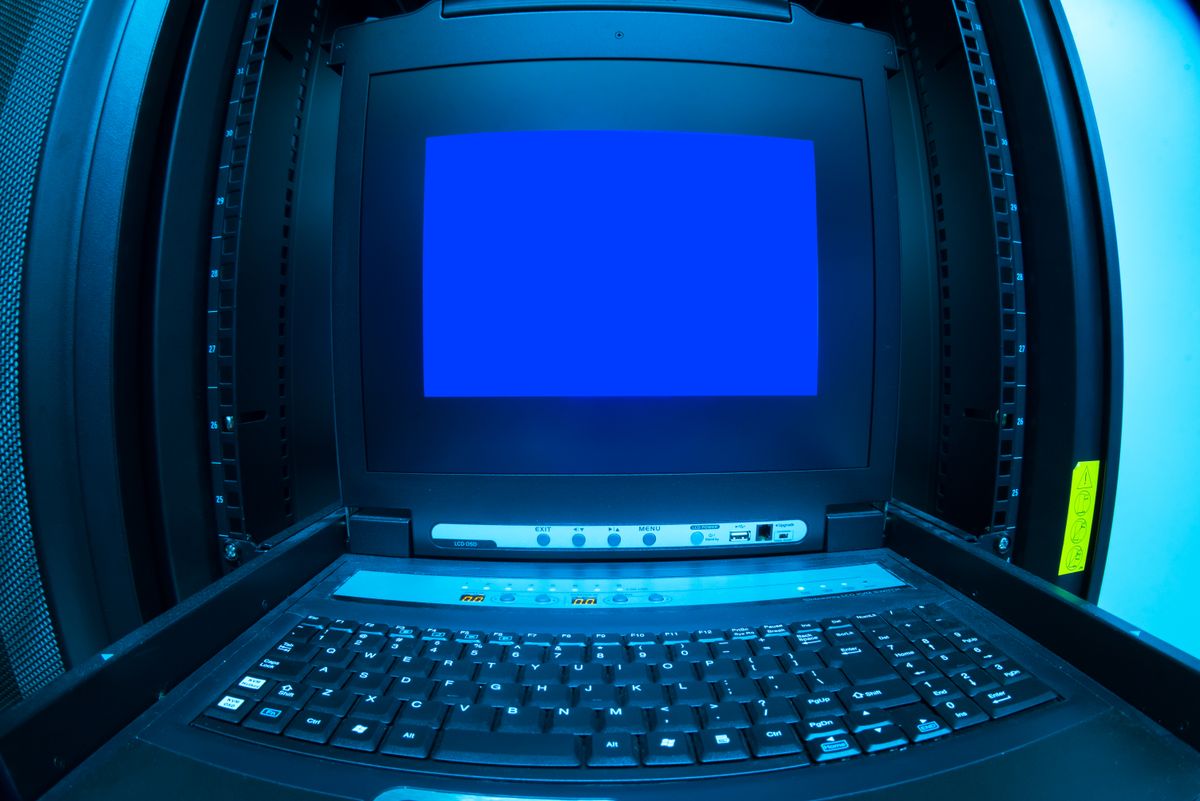
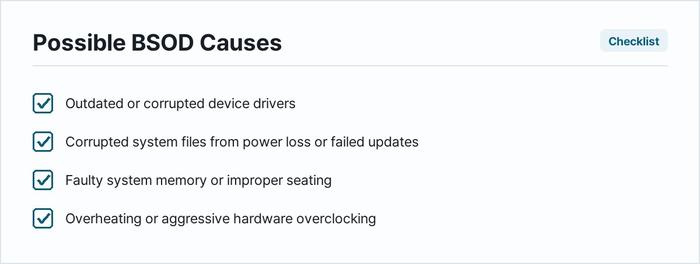
When current versions of Windows 11 display a blue screen featuring a sad face and a stop code, the operating system has encountered a fatal system error and halted to prevent permanent damage. The quickest and most effective first step is to disconnect all non-essential external peripherals, such as USB drives, printers, and docking stations, and restart the computer. Doing this immediately rules out faulty external device drivers and peripheral hardware conflicts as the root cause of the crash.
The settings paths, recovery-menu names and tool commands in this guide are for Windows 11 as of October 2026. On Windows 10 several of these screens sit in the old Control Panel instead, and the Recovery menu is reached differently.
What the symptom usually means
A blue screen, formally known as a Stop Error or Blue Screen of Death (BSOD), occurs when the Windows kernel crashes. Understanding the underlying causes helps determine the correct repair path.
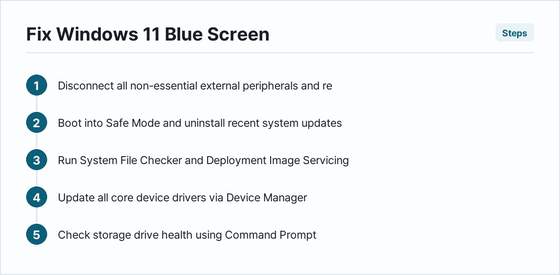
- Outdated or Corrupted Device Drivers: Software that allows Windows to communicate with hardware components often malfunctions, particularly graphics card drivers and storage controller drivers.
- Corrupted System Files: Essential operating system files can become damaged due to unexpected power loss, failed updates, or malfunctioning storage drives.
- Faulty System Memory (RAM): Physical RAM modules with failing sectors or improper seating cause memory access violations that crash the kernel instantly.
- Overheating or Overclocking: Excessive processor or graphics card temperatures, or aggressive hardware clock speeds, push components beyond stable operating limits.
Checklist before you change anything
Run down this checklist first. Each line decides which of the steps below is worth your time, and two of them have to be done before a crash is even diagnosable:
- Have you written down the stop code exactly as shown? Without it you are guessing between a driver fault and failing hardware.
- Does the machine boot into Safe Mode? If it does, the cause is almost certainly software and the hardware steps can wait.
- Was anything installed, updated or plugged in just before the first crash? That single answer often replaces the whole sequence.
- Are all non-essential peripherals disconnected? Docks, external drives and printers are the cheapest cause to rule out.
- Is there a current backup of anything you cannot lose? The Reset step at the end carries data-loss risk.
- Is the system overclocked, including an XMP or EXPO memory profile? Return it to stock settings before trusting any other result.
Fix in this order
Proceed through these troubleshooting steps sequentially. Each step rules out a specific category of potential failure, starting with the least invasive software fixes.
-
Boot into Safe Mode and Uninstall Recent Updates
If the blue screen occurs immediately after installing a system update or application, Safe Mode loads only essential drivers. Restart the computer three times during the boot sequence to enter the Windows Recovery Environment. Go to Troubleshoot > Advanced options > Startup Settings > Restart, then press 4 or F4 to enable Safe Mode. Once loaded, go to Settings > Windows Update > Update history > Uninstall updates. This step rules out faulty patches or recently added software packages as the cause.
-
Run System File Checker and Deployment Image Servicing
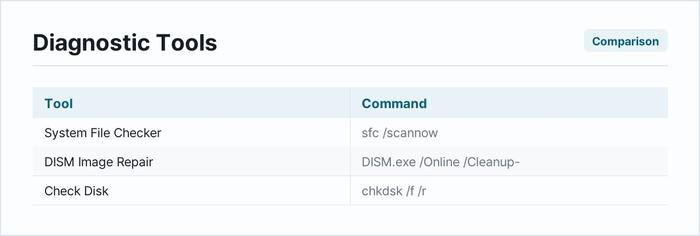
Corrupted system files frequently trigger stop codes. Open the Start menu, type cmd, right-click Command Prompt, and select Run as administrator. Type sfc /scannow and press Enter. Allow the scan to complete and repair any damaged files it finds. Next, type DISM.exe /Online /Cleanup-image /Restorehealth and press Enter to repair the underlying system image. This step rules out operating system file corruption.
-
Update All Core Device Drivers
Outdated drivers conflict with current versions of Windows 11. Open the Start menu, type Device Manager, and press Enter. Look for yellow warning triangles next to any hardware components. Right-click each device and select Update driver. Pay special attention to display adapters, network cards, and disk drives. This step rules out driver incompatibilities.
-
Check Storage Drive Health
Failing hard drives or solid-state drives corrupt data and cause fatal system crashes. Open Command Prompt as an administrator, type chkdsk /f /r and press Enter. Confirm that you want to schedule the check for the next restart, then reboot the computer. This utility scans the physical disk surface and file system structures. This step rules out storage drive degradation.
-
Test System Memory (RAM)
Faulty RAM modules corrupt data streams. Open the Start menu, type Windows Memory Diagnostic, and select Run as administrator. Choose Restart now and check for problems (recommended). The computer will reboot into a diagnostic environment and test all installed memory sticks. This step rules out RAM hardware failure.
-
Reset Windows 11 (Data Loss Risk)
Warning: This step can result in data loss if not executed correctly. Before proceeding, back up all personal files, photos, documents, and application configurations to an external hard drive or cloud storage service. Go to Settings > System > Recovery. Under Reset this PC, click Reset PC and choose Keep my files to refresh operating system components while preserving personal data. This step rules out deep-seated configuration corruption.
When it is hardware
If troubleshooting steps do not resolve the blue screen, or if crashes occur during installation or before Windows loads, the issue is almost certainly hardware-related. Watch for symptoms such as sudden power shutoffs, loud fan noises, or unusual burning odors. Test components individually by removing one stick of RAM at a time, reseating the graphics card in its PCIe slot, monitoring internal temperatures using third-party utility software, and replacing the power supply unit if voltage rails fluctuate outside acceptable tolerances.
| Symptom | Likely cause | What to do |
|---|---|---|
| Stop code references nvlddmkm.sys | NVIDIA graphics driver failure | Boot into Safe Mode, use Display Driver Uninstaller, and install the latest driver from the manufacturer website. |
| Stop code mentions MEMORY_MANAGEMENT | Faulty or improperly seated RAM | Run Windows Memory Diagnostic and reseat memory modules in their motherboard slots. |
| Crash occurs randomly during heavy load | Overheating CPU or GPU | Clean dust from cooling fans, check thermal paste application, and ensure adequate case ventilation. |
| Stop code references CRITICAL_PROCESS_DIED | Corrupted core operating system service | Run SFC and DISM command-line tools to repair missing or damaged system binaries. |
| Blue screen appears immediately upon boot | Failing primary storage drive | Run chkdsk utility and check SMART status attributes using diagnostic software. |
| Crashes happen only when a specific USB device is plugged in | Incompatible peripheral driver | Disconnect the device, update its dedicated driver, or replace faulty connection cables. |
How to stop it coming back
Prevent future blue screen errors by maintaining a disciplined system maintenance routine. Enable automatic updates through Settings > Windows Update to ensure critical security patches and driver fixes install promptly. Avoid downloading software from unverified third-party sources or running aggressive system tweaking utilities that modify core registry keys without validation. Clean physical dust from internal computer components every six months to prevent thermal throttling and component degradation. Finally, create regular system restore points via Settings > System > About > System protection so the operating system can easily revert to a stable configuration if a future software installation fails.
What does a stop code look like?
A stop code is an alphanumeric string, such as CRITICAL_PROCESS_DIED or PAGE_FAULT_IN_NONPAGED_AREA, displayed near the bottom of the blue screen to identify the specific error type.
Can a virus cause a blue screen?
Yes. Malicious software that injects code into the Windows kernel or damages system files can trigger fatal stop errors.
Should I note down the stop code?
Yes. Recording the exact stop code or taking a photo of the screen allows for targeted troubleshooting rather than guessing the repair method.
How do I access Safe Mode if Windows will not boot?
Interrupt the normal boot sequence three times consecutively by holding the power button down during startup to trigger the automatic recovery environment.
Does overclocking cause blue screens?
Yes. Pushing CPU, GPU, or RAM clock speeds beyond factory specifications often destabilizes the system voltage and triggers kernel crashes.
Advanced Troubleshooting When Standard Fixes Fail
When the standard recovery methods and basic driver updates fail to resolve a persistent Blue Screen of Death, you must dive deeper into the operating system's core diagnostics. One of the most effective advanced approaches involves analyzing the memory dump files generated by Windows during the crash. By default, Windows creates a minidump or a complete memory dump whenever a fatal system error occurs. You can check these files using specialized diagnostic software such as the Windows Debugger available from the Microsoft Store. When using this tool, you will open the most recent dump file and run automated analysis commands that point directly to the specific driver or system file responsible for the crash, rather than guessing blindly.
Another critical step in advanced troubleshooting is performing a thorough check of the underlying file system and system image integrity. Corrupted system files are a frequent culprit behind recurrent stop codes. To address this, boot your computer into Safe Mode or open an elevated command prompt from the Windows Recovery Environment. You should execute the Deployment Image Servicing and Management tool first, pointing it to repair the Windows system image sources. Following that, run the System File Checker utility to scan all protected operating system files and replace any corrupted or modified versions with verified healthy copies from the local component store.
To ensure you do not miss any hidden software conflicts, use the system configuration utility to perform a clean boot. This process disables all third-party background applications and non-Microsoft services from launching automatically at startup. If the blue screen stops occurring in a clean boot state, you know with certainty that a background utility, third-party antivirus, or peripheral software is causing the conflict. You can then systematically re-enable those services one by one, rebooting after each change, until the problematic software is identified and uninstalled.
Investigating Third-Party Software and Service Conflicts
Third-party software often interacts deeply with the Windows 11 kernel, making it a prime suspect for triggering sudden system instability. Security suites, disk management utilities, and overclocking software require low-level system access, which can easily lead to conflicts if they are not fully optimized for your specific build of Windows 11. What to check first is any recently installed application that alters system performance, manages hardware monitoring, or provides real-time network filtering. Common mistakes include simply moving these programs to the recycle bin rather than using their dedicated uninstallation tools, leaving behind stray registry keys and kernel-level filter drivers that continue to cause crashes even after the user interface is gone.
What to do in each situation depends on the nature of the software category:
- Antivirus and Security Suites: Temporarily uninstall third-party security software completely and rely on built-in Windows Defender to see if the blue screens cease.
- Overclocking and Tuning Utilities: Remove any software designed to push CPU, GPU, or RAM past factory specifications, as unstable voltage offsets frequently trigger memory management stop codes.
- Virtualization and Emulation Software: Update hypervisor components and virtual machine tools, as outdated hyper-v drivers often clash with core security isolation features in Windows 11.
- RGB and Peripheral Control Apps: Strip out bloatware associated with gaming mice, keyboards, and motherboards, which are notorious for leaking memory and causing kernel security check failures.
What to compare is the timeline of your software installations against the exact dates when the blue screen errors began appearing. Often, a routine automatic update for a peripheral management utility or a graphics suite introduces a regression that destabilizes the operating system. If you identify such an update, rolling back the application to the previous stable release or waiting for a hotfix from the developer is the most reliable path forward.
Preventative Maintenance to Maintain System Stability
Once you have successfully stabilized your Windows 11 installation, implementing a proactive maintenance routine is essential to prevent future blue screen errors from disrupting your workflow. System stability is not a set-it-and-forget-it state; it requires ongoing vigilance regarding updates, thermal management, and data integrity. What to do in each situation is establish a structured schedule for system upkeep that addresses both software health and environmental factors surrounding your machine.
A major component of preventative maintenance involves managing your hardware environment and device drivers correctly. Dust accumulation inside desktop and laptop chassis can cause thermal throttling and component instability, which eventually manifests as unpredictable kernel errors. Physically cleaning your cooling fans and replacing degraded thermal paste on your processor every few years is just as important as installing software updates. maintain strict discipline regarding driver updates. Avoid downloading unofficial driver packs from third-party websites; instead, stick strictly to motherboard manufacturer support pages and official component vendor channels for chipset, network, and storage controllers.
Finally, protect your system against abrupt power fluctuations and file corruption by maintaining a solid backup strategy. Use a reliable Uninterruptible Power Supply to prevent sudden power cuts from corrupting the file system during write operations. Regularly create system restore points before installing major updates or new hardware, ensuring that you always have a quick rollback path if a new patch proves unstable. By combining disciplined update practices with regular physical maintenance, you can dramatically reduce the likelihood of encountering future system crashes.
Sources and how to verify this yourself
The order of the steps above follows what Microsoft publishes for stop-code errors:
- Microsoft, Troubleshooting Windows unexpected restarts and stop code errors (Microsoft Support; checked 5 October 2026). It documents starting the PC in safe mode, checking Device Manager for devices marked with an exclamation point and updating those drivers, checking for sufficient free space on the drive, and installing the latest Windows updates.
These checks let you confirm the diagnosis on the machine in front of you rather than working from the symptom alone:
- What was the stop code? Open Event Viewer and look in Windows Logs > System for the critical entry at the time of the crash. The code is the difference between a driver fault and failing hardware.
- Software or hardware? If the machine runs normally in safe mode, the kernel and the hardware are starting correctly and the cause loaded afterwards.
- Is the drive healthy? Run
chkdskand look at the drive's own SMART status in its manufacturer utility. A failing drive produces crashes that look like random driver faults. - Is it the memory? Run Windows Memory Diagnostic and, if the system is overclocked or running an XMP or EXPO profile, repeat the test at stock settings. A result from an overclocked machine does not tell you much.
Frequently Asked Questions
What causes a Blue Screen of Death in Windows 11?
A Blue Screen of Death typically results from a critical kernel-level error triggered by faulty drivers, corrupted system files, or failing physical hardware.
How can I read the stop code if my computer restarts too fast?
Disable automatic restart during system failures by accessing advanced startup options, or check the Windows Event Viewer logs after booting back up.
Is a blue screen always a sign of hardware failure?
No. The vast majority of blue screen errors stem from software conflicts, bad device drivers, or corrupt operating system files rather than broken hardware.
What should I back up before attempting a system reset?
Back up all personal files, documents, photos, and application configuration data stored on the system drive to an external storage device or cloud service.
Do external USB devices cause blue screens?
Yes. Faulty external drives, incompatible docking stations, or corrupted peripheral drivers frequently trigger stop codes when connected to the PC.