Windows 11 Slow Fix Speed Up Guide Methods
Most slow Windows 11 PCs are slowed by a handful of fixable causes: too many apps starting with Windows, low disk space, missing updates, malware, or hardware that is short of memory or still uses a hard drive. Microsoft's own support guide lists limited storage space, too many startup apps running in the background, outdated software and hardware that no longer meets modern performance needs as common reasons (Microsoft Support, Tips to improve PC performance in Windows, applies to Windows 11 and Windows 10). This guide works through the fixes in order, from the free settings changes to the hardware decisions, so you can stop as soon as the PC feels fast again.
Step 1: Restart and Install Updates
A restart clears apps and processes that have piled up since the last boot; Microsoft suggests closing unused apps and browser tabs and restarting if performance does not improve. Then go to Start > Settings > Windows Update and select Check for updates. Microsoft notes that updates often include fixes and performance improvements, and that optional driver updates under Advanced options > Optional updates can sometimes help.
Step 2: Free Up Storage
Microsoft says low disk space can reduce system performance and recommends Storage Sense and the cleanup tools to remove temporary files. Open Settings > System > Storage, turn on Storage Sense, and select Run Storage Sense now. Then look at the largest categories in the storage view: old downloads, large videos, and apps you no longer use are the usual space-takers. Uninstall unused apps from Settings > Apps > Installed apps.
Step 3: Trim Startup Apps
Every app that starts with Windows uses memory and processor time before you have opened anything. Microsoft recommends disabling startup apps to reduce background activity: open Task Manager, select Startup apps, and disable anything you do not need the moment you sign in, such as updaters, launchers and chat apps you rarely use. The "Startup impact" column helps you pick. You can still open those apps whenever you want.
What Software Settings Must Be Changed to Speed Up Windows 11?
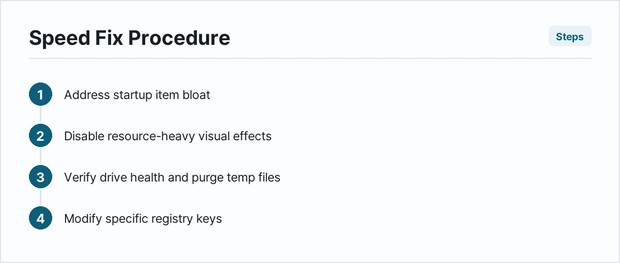
- Visual effects. Microsoft notes that visual effects use system resources. Search for "Adjust the appearance and performance of Windows" and, on the Visual Effects tab, select Adjust for best performance. You can re-enable smooth fonts if text looks rough.
- Power mode. Under Settings > System > Power & battery, Microsoft's guide suggests Best performance when power use is not a concern, while warning that it increases power consumption, drains laptop batteries faster and can make the device run warmer.
- Background apps. In each app's advanced options in Settings, you can stop apps you rarely use from running in the background.
- Notifications and widgets. Turning off what you do not use reduces background activity.
How to Fix Windows 11 Slow File Explorer and Search Lag?
If File Explorer opens slowly or search seems to hang, restart File Explorer from Task Manager first. If search indexing is busy, open Settings > Privacy & security > Searching Windows: you can choose which folders are indexed and use the advanced indexing options to rebuild the index, which takes a while but often fixes stuck searches. Folders full of very large numbers of files, or cloud folders still syncing, can also make Explorer sluggish; let OneDrive finish syncing or pause it while you work.
How to Remove Bloatware and Malware Causing Windows 11 Lag?
Malware can slow a PC badly by using processor time in the background. Microsoft's guide points to Start > Settings > Privacy & security > Windows Security > Virus & threat protection to scan the device. If you suspect something is hiding, the Microsoft Defender Offline scan restarts the PC into a separate environment to look for threats that hide while Windows is running. Afterwards, remove preinstalled trial software and toolbars you do not use from Installed apps. Check Task Manager's Processes tab before and after to see the difference on your own machine.
Check System Files and Drive Health
If Windows behaves oddly as well as slowly, run the built-in repair tools from an administrator Terminal: DISM /Online /Cleanup-Image /RestoreHealth followed by sfc /scannow. They check and repair Windows' own system files and are safer than third-party "registry cleaners", which can remove entries Windows needs. Also check the drive: in Settings > System > Storage > Advanced storage settings > Disks & volumes, select the drive and look at its properties and health information if available.
How Much Does Hardware Upgrading Cost to Fix Windows 11 Speed Issues?
If the PC is still slow after the steps above, Task Manager's Performance tab tells you where the bottleneck is:
- Memory constantly near full: adding RAM helps, if your PC has free slots or replaceable modules. Check the manufacturer's specifications for the type and maximum supported.
- Disk constantly busy and the PC still uses a hard disk drive: moving Windows to a solid-state drive is usually the single biggest improvement for an older PC.
- Processor constantly near full with few apps open: look for a runaway process first; if the processor is simply old, an upgrade may mean a new PC.
Prices for memory and SSDs change often, so compare current prices from retailers for the exact part your PC supports. On laptops, check whether memory is soldered before buying; many thin models cannot be upgraded.
Comparison
| Fix | Cost | When it helps most |
|---|---|---|
| Restart and updates | Free | Always the first step |
| Storage Sense and uninstalling apps | Free | Drive nearly full |
| Disabling startup apps | Free | Slow boot and sign-in |
| Visual effects and power mode | Free | Older or low-power hardware |
| Malware scan | Free with Windows Security | Sudden unexplained slowdown |
| More RAM | Paid part | Memory constantly full |
| SSD upgrade | Paid part | PC still on a hard disk |
How often should temporary files be cleared in Windows 11?
Let Storage Sense handle it automatically, and run it manually when the drive gets close to full.
Does upgrading RAM speed up Windows 11 gaming performance?
It helps when the game and background apps fill the installed memory; if memory is not full during play, more RAM changes little. Watch Task Manager's Performance tab while playing to find out.
Why does Windows 11 show 100 percent disk usage at idle?
Common causes are updates installing in the background, search indexing, or cloud sync. Let them finish, check Task Manager for the process responsible, and if the PC uses a hard disk, consider an SSD.
Is a clean installation of Windows 11 better than upgrading components?
A reset can remove accumulated software problems, but it will not fix a hard disk or a shortage of memory. Back up your files first, and try the free steps before either option.
How do background startup apps affect battery life on Windows 11 laptops?
Apps running in the background use processor time and power. Disabling unneeded startup and background apps reduces that load.
Can registry cleaners safely speed up Windows 11?
They are generally unnecessary and can delete entries Windows needs. Use the built-in DISM and SFC tools instead.
Key Takeaways
- Restart, install updates, free up storage and trim startup apps before anything else.
- Scan for malware with Windows Security if the slowdown is sudden.
- Use DISM and SFC rather than registry cleaners.
- Use Task Manager to see whether memory, disk or processor is the bottleneck before buying hardware.
- An SSD is usually the biggest upgrade for a PC still running on a hard disk.
Sources and References
- Microsoft Support, Tips to improve PC performance in Windows — causes of slowdowns, updates, Storage Sense, startup apps, visual effects, power mode, virus scan, restart (applies to Windows 11 and Windows 10; read October 9, 2026).