Direct answer
When an external hard drive fails to appear in current versions of Windows 11, the issue usually stems from a missing drive letter assignment, a loose physical connection, or an unpowered USB port. The single fastest troubleshooting action is unplugging the USB cable and plugging it into a different port directly on the rear of the computer chassis, bypassing any external hubs. This rules out faulty USB ports and insufficient power delivery instantly. If the drive still does not appear, checking Disk Management is the necessary next step to see if the operating system detects the physical disk hardware even if File Explorer cannot display it.
What the symptom usually means
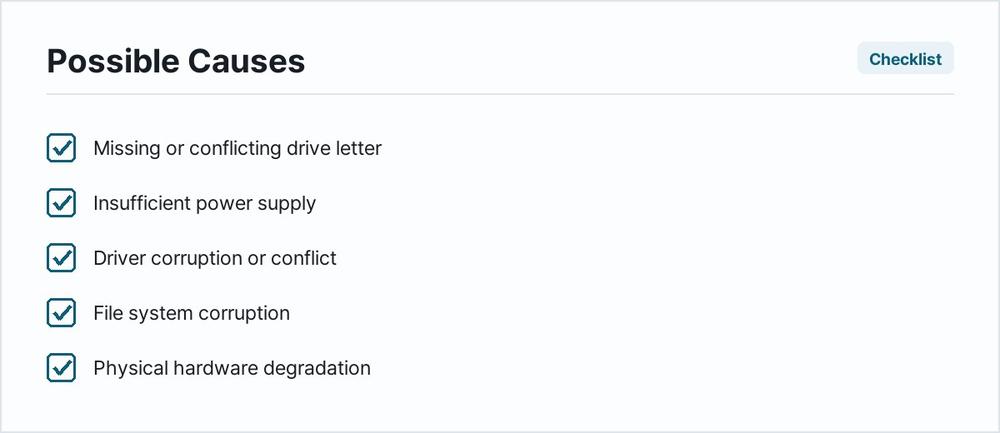
An external storage device failing to populate within the operating system points to a handful of distinct root causes. Recognizing these possibilities helps narrow down the troubleshooting process efficiently.
- Missing or conflicting drive letter: The operating system detects the hardware partition but cannot assign it a letter because another device or network share occupies the designated slot.
- Insufficient power supply: Mechanical desktop drives require external power bricks, while high-capacity portable drives demand stable current from a direct motherboard port rather than a passive keyboard or monitor USB pass-through.
- Driver corruption or conflict: Universal Serial Bus controllers or outdated storage drivers fail to communicate correctly with the plugged-in peripheral.
- File system corruption: Unsafe removal practices or unexpected shutdowns leave the partition format unreadable to the operating system, rendering the volume RAW or unallocated.
- Physical hardware degradation: Mechanical spindle failure, connector wear, or internal bridge board failure prevents the drive from initializing.
Fix in this order
Proceed through these troubleshooting steps sequentially, moving from non-destructive physical checks to deep system modifications. Each step rules out a specific point of failure.
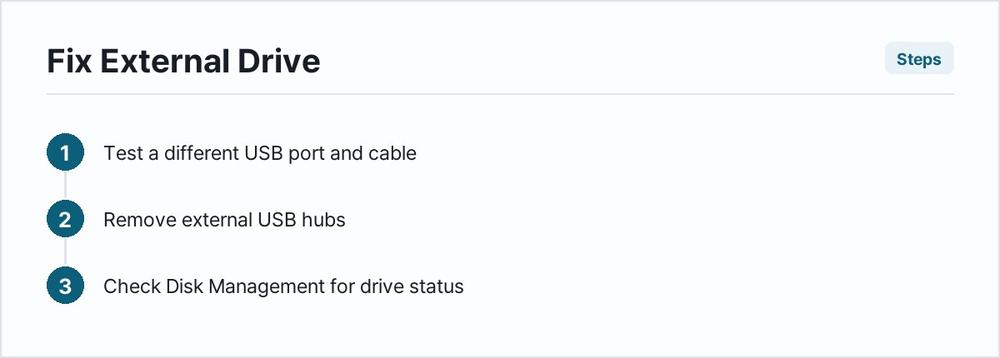
Test a different USB port and cable
Disconnect the external drive entirely. Inspect both ends of the cable for bent pins or debris. Plug the drive into a different port on the computer. For desktop computers, always use the ports directly attached to the motherboard on the back panel rather than the front chassis ports, which rely on internal extension wiring and often suffer from voltage drop. This step rules out a dead motherboard port, a broken cable, or a faulty front-panel header.
If the drive spins up or lights up on a different port, the original port or cable is defective.
Remove external USB hubs
Disconnect the external hard drive from any multi-port USB hubs, docking stations, or monitor passthrough connections. Plug the drive directly into a primary port on the computer. Many unpowered hubs split electrical current across multiple accessories, starving high-draw storage drives of the wattage required to spin the internal platters or power the solid-state controller. This step rules out power starvation and hub communication bottlenecks.
If the drive appears after direct connection, the hub lacks sufficient power or data bandwidth.
Check Disk Management for drive status
Right-click the Start button and select Disk Management. Locate the external drive in the lower pane, which displays all physical disks attached to the machine regardless of whether they have a letter assigned in File Explorer. This step rules out a simple File Explorer visualization glitch and confirms whether the operating system registers the physical storage medium.
If the drive appears here as Unallocated or without a blue partition bar, the hardware is fine, but the volume configuration requires attention.
Assign or change the drive letter
If Disk Management shows the external drive partition as healthy but missing a letter, right-click that partition block and select Change Drive Letter and Paths. Click Add or Change, select an available letter from the dropdown menu, click OK, and confirm any warning prompts. This step rules out drive letter collisions where Windows tries to mount the disk to a letter already occupied by a network share or virtual drive.
If the drive appears in File Explorer immediately after this step, the missing letter was the sole cause.
Run the Hardware and Devices troubleshooter
Open the Run dialog box by pressing the Windows key and the letter R on the keyboard. Type msdt.exe -id DeviceDiagnostic and press Enter. Follow the on-screen prompts to let the operating system scan for recent hardware changes and misconfigured peripheral settings. This step rules out minor driver handshake errors and registry corruption related to attached hardware enumeration.
If the troubleshooter detects an issue and applies a fix, restart the computer to finalize the changes.
Update or reinstall USB controllers in Device Manager
Right-click the Start button and select Device Manager. Expand the Universal Serial Bus controllers category. Right-click each listed USB Host Controller or USB Root Hub and select Uninstall device. Do not panic if mouse or keyboard input pauses briefly. Restart the computer immediately afterward. Upon reboot, Windows automatically reinstalls fresh instances of the USB controllers and re-enumerates all connected devices. This step rules out corrupted driver software stacks that block proper communication with external storage hardware.
If the drive initializes after the reboot, a corrupt USB driver stack was interfering with the connection.
Check for updated disk drivers
In Device Manager, expand the Disk drives category. Right-click the external hard drive and select Update driver. Choose Search automatically for drivers. If Windows reports that the best drivers are already installed, right-click the drive again, select Uninstall device, and unplug the drive. Wait ten seconds, plug it back into a different port, and let Windows reinstall the device stack from scratch. This step rules out outdated or mismatched storage controller microcode.
If the drive begins functioning normally, the local driver cache was corrupted.
Initialize the disk if shown as Unknown or Not Initialized
If Disk Management shows the disk as Not Initialized with a black unallocated bar, right-click the disk name on the left side of the lower pane and select Initialize Disk. Choose the partition style appropriate for the system, typically GPT for modern setups. Warning: Initializing a disk clears its partition table. If the drive contained critical files, stop here and consult data recovery professionals rather than proceeding, as initialization paves the way for a blank volume. This step rules out a corrupted partition table framework.
Format the volume with a new file system
If Disk Management shows the partition as RAW or completely unformatted, right-click the partition and select Format. Choose NTFS or exFAT as the file system allocation unit. Warning: Formatting permanently erases all existing data on that partition. Back up any essential files using specialized recovery software before executing this step if the data cannot be replaced. This step rules out severe file system damage that prevents the operating system from reading the directory index.
When it is hardware
When software troubleshooting fails, physical hardware failure is the culprit. External hard drives endure significant mechanical and thermal stress over their lifespan, particularly portable models that travel inside bags. To confirm a hardware failure, remove the external enclosure if the drive is a standard desktop or older laptop model, and connect the internal SATA drive directly to a motherboard header and power supply using spare desktop cables. Alternatively, test the external drive enclosure on an entirely different computer that functions normally with other USB accessories.
Signs of permanent hardware failure include a completely dead drive that produces zero vibration, persistent clicking or ticking noises coming from the internal read heads hitting the physical stop, or a burning odor originating from the internal circuit board. If the computer fails to recognize the drive in the BIOS or UEFI setup utility during a system restart, the issue is strictly physical and outside the scope of operating system repair. In such cases, professional cleanroom data recovery is the only path to retrieve stored contents, while replacing the drive unit is necessary for future storage.
| Symptom | Likely cause | What to do |
|---|---|---|
| Drive clicks repeatedly and spins down | Mechanical failure or insufficient power | Connect to a direct rear port or replace the drive immediately |
| Appears in Device Manager with a yellow exclamation mark | Corrupted driver or driver conflict | Uninstall the device in Device Manager and restart the computer |
| Shows as unallocated space in Disk Management | Deleted partition table or raw file system | Assign a drive letter or recover partition data using utility tools |
| Makes chime sound on connect, but nothing happens | Missing drive letter or hidden volume | Open Disk Management and assign a new drive letter |
| Prompts to format before use | Corrupted file system metadata | Run file recovery software before formatting the volume |
| Spins up, but gets extremely hot | Short circuit in the bridge board or controller | Unplug immediately to prevent fire hazard or motherboard damage |
How to stop it coming back
Preventing external drive detection failures requires disciplined daily habits regarding hardware maintenance and system hygiene. Always use the Safely Remove Hardware and Eject Media feature in the Windows taskbar before pulling any USB cable from the port. Yanking a cable mid-write cycle corrupts the master file table, rendering the volume unreadable upon the next connection. Protect portable mechanical hard drives from physical shock by storing them in padded carrying cases, and avoid moving them while the internal platters are spinning at high revolutions.
For desktop setups, plug high-capacity external hard drives into dedicated wall power adapters rather than relying on bus power from unpowered hubs or older keyboards. Keep system drivers updated through Windows Update or official motherboard manufacturer support pages to ensure the USB host controllers operate with stable microcode. Finally, maintain secondary backups of all crucial files stored on external media. Relying on a single external drive for irreplaceable family photos or critical work documents invites data loss, as hardware can fail unexpectedly regardless of preventive care.
Can a virus cause an external hard drive to disappear?
Malware can modify file attributes to hide folders or corrupt partition tables, making the drive appear empty or inaccessible. Running a full system scan with Windows Security helps detect and eliminate malicious software interfering with storage operations.
What is the difference between NTFS and exFAT for external drives?
NTFS is optimized for Windows environments, offering solid security permissions and journaling to prevent corruption. exFAT is a lighter file system designed for cross-platform compatibility with macOS and Linux without requiring third-party drivers.
Why does my external drive work on my laptop but not my desktop?
This usually indicates insufficient power output on specific desktop front USB ports, outdated motherboard chipset drivers, or disabled USB legacy support within the BIOS configuration on the desktop machine.
How can I recover data from a drive that Windows refuses to recognize?
If the physical disk spins correctly and appears in Disk Management, third-party data recovery software can often scan the raw sectors to extract files. If the disk does not spin or makes clicking noises, specialized hardware recovery is required.
Is it safe to leave my external hard drive plugged in all the time?
Leaving an external drive plugged in continuously is generally safe, provided the computer has adequate ventilation and surge protection. Still, power surges or lightning strikes can travel through USB lines, so unplugging drives during severe electrical storms is recommended.
Frequently Asked Questions
Why does my external hard drive show up in Device Manager but not File Explorer?
This usually means the operating system detects the physical hardware connection, but the drive lacks a recognized file system or a drive letter assignment. Checking Disk Management will reveal if the volume is unallocated or missing a letter.
Will changing the drive letter delete my files?
No, assigning or changing a drive letter in Disk Management only changes how the operating system references the volume. Existing data on the partition remains untouched.
What should I do if my external hard drive clicks or spins down repeatedly?
Clicking noises and frequent spin-downs indicate mechanical failure, often caused by insufficient power or a damaged read head. Stop using the drive immediately and contact a data recovery professional if the files are irreplaceable.
Can a corrupted file system prevent a drive from appearing?
Yes. If the file system becomes raw or corrupted, Windows cannot read the directory structure, causing the drive to disappear from File Explorer or prompt you to format it.
How do I safely disconnect an external hard drive to prevent data loss?
Always use the Safely Remove Hardware and Eject Media icon in the taskbar before unplugging the cable. This ensures the operating system finishes writing any cached data to the disk.