Direct answer
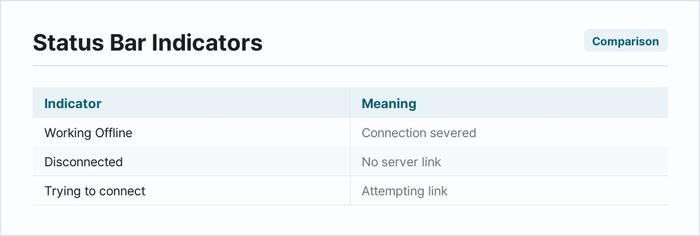
When Microsoft Outlook stops syncing emails on Windows, the issue usually stems from a severed connection to the mail server or a corrupted local cache file. The fastest and most reliable first step is to force the application to reconnect by toggling the Work Offline mode. Open Outlook, click the Send / Receive tab at the top ribbon, and click the Work Offline button. Wait ten seconds, then click the button again to toggle it off and force a fresh connection to the server. This action rules out transient network dropouts and forces Outlook to query the server for new incoming messages without altering any personal settings or stored data files.
Menu names and settings paths in this guide are for the Microsoft 365 desktop version of Outlook on Windows 11, as of October 2026. Older perpetual-licence versions keep some of these controls in different places, and the new Outlook for Windows moves several of them again.
What the symptom usually means
An email synchronization failure in Outlook manifests when the desktop client displays outdated messages, fails to send outgoing mail, or shows a disconnected status in the bottom status bar. Diagnosing the root cause requires understanding the common triggers behind this behavior.
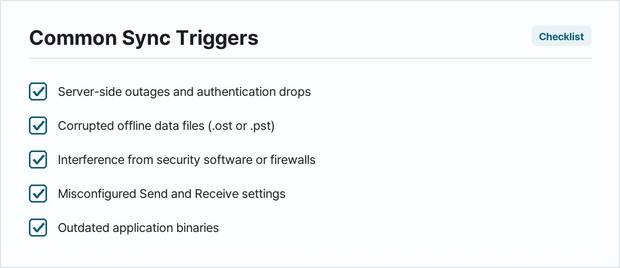
- Server-Side Outages and Authentication Drops: The email provider, such as Microsoft Exchange, Gmail, or Yahoo, may be experiencing service degradation, or stored security credentials may have expired or changed recently on the web portal.
- Corrupted Offline Data Files (.ost or.pst): Outlook stores a local replica of mailbox items on the local solid-state drive or hard disk. When this database file becomes fragmented or damaged, background synchronization processes halt entirely.
- Interference from Security Software: Third-party antivirus suites, aggressive local firewalls, or Virtual Private Networks can block the specific network ports that Outlook uses to communicate with mail servers.
- Misconfigured Send and Receive Settings: Automated polling intervals may be disabled, or background data usage restrictions on Windows may prevent the application from refreshing while running in the background.
- Outdated Application Binaries: Running an older build of Office or Microsoft 365 on current versions of Windows 11 can introduce protocol mismatches that disrupt standard synchronization routines.
Checklist before you change anything
Work down this checklist first. Each line is a condition that makes one of the steps below either unnecessary or risky, and checking them takes a minute:
- Is the status bar showing Working Offline or Disconnected? If so, nothing below matters until that is cleared.
- Does the same mailbox load correctly in the provider's web interface? If it does not, the problem is on the account side, not in Outlook.
- Did the mail provider recently force a password change or switch on two-factor authentication? That changes which step applies.
- Is the data file an .ost (server copy, safe to rebuild) or a .pst (local-only, not safe to delete)? Check before the rebuild step.
- Do you have the account password available? Creating a new profile asks for it again.
- Is the mailbox close to its storage limit? A full mailbox stops receiving and looks identical to a sync failure.
Fix in this order
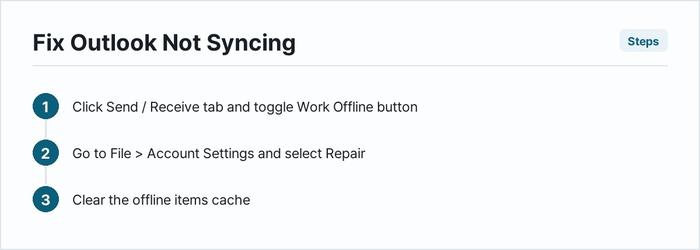
Troubleshooting must proceed from the least invasive adjustments to the most thorough profile rebuilds. Each subsequent step isolates specific components of the software stack to rule out potential failure points.
- Check Connection Status and Toggle Work Offline
Look at the bottom right corner of the Outlook application window. If the status bar reads Working Offline, Disconnected, or Trying to connect, click the Send / Receive tab on the top menu ribbon. Click the Work Offline button to toggle the connection state. Wait for the status bar to reflect Connected to Microsoft Exchange or Connected to server. This step rules out momentary local network glitches and temporary server timeouts.

- Verify Account Credentials and Update Password
If the mail provider recently required a password update, or if multi-factor authentication tokens expired, Outlook cannot authenticate with the server. Go to File > Account Settings > Account Settings. Select the affected email account and click Repair. Follow the on-screen wizard to re-enter current credentials. Alternatively, click Change to update the password manually. This step rules out authentication failures and invalid security tokens as the cause of the sync block.
- Clear the Offline Items Cache
A bloated or desynchronized local cache prevents new data from writing into the interface. Right-click the primary mail folder, such as Inbox, and select Properties. Navigate to the General tab and click the Clear Offline Items button. This action deletes local copies of folder items without removing data from the cloud server. Click OK, then go to the Send / Receive tab and click Update Folder to force a complete redownload of all mailbox contents. This step rules out minor file corruption within specific folder directories.
- Adjust Send and Receive Intervals
If Outlook syncs only when manually clicking Send/Receive, the automated polling timer may be misconfigured. Go to File > Options > Advanced. Scroll down to the Send and receive section and click the Send/Receive button. Ensure that the box labeled Schedule an automatic send/receive every X minutes is checked, and set the interval to a reasonable duration such as five to ten minutes. Verify that the option for When online, use the connection is also enabled. This step rules out disabled background synchronization routines and timer freezes.
- Disable Third-Party Antivirus Add-ins
External security software often installs Outlook add-ins that scan incoming and outgoing emails, which can inadvertently lock synchronization sockets. Open Outlook and go to File > Options > Add-ins. At the bottom of the window, locate the Manage dropdown menu, select COM Add-ins, and click Go. Uncheck any add-ins associated with third-party antivirus utilities or PDF creation tools. Click OK and restart Outlook completely. This step rules out software conflicts caused by third-party code extensions intercepting mail traffic.
- Repair the Office Installation
Core system libraries or executable binaries within the Microsoft Office suite may be damaged. Open the Windows Start menu, type Add or remove programs, and press Enter. Locate Microsoft 365 or Microsoft Office in the application list, click the three-dot menu icon, and select Modify. Choose Online Repair when prompted. This process replaces damaged program files while attempting to preserve user data. This step rules out deep application binary corruption.
- Rebuild the Outlook Data File (.ost)
When the local storage database is completely broken, repairing individual folders fails. Note: This step requires caution. Closing Outlook and deleting the.ost file will remove local offline data, which is then recreated from the live server. First, close Outlook completely. Press the Windows key + R to open the Run dialog box, type
%localappdata%\Microsoft\Outlook, and press Enter. Locate the file ending in.ost that corresponds to the problematic email address. Right-click the file and select Delete. (Important: Ensure you have backed up any locally stored.pst archive files or unsubmitted draft emails before performing this deletion, as clearing an unsynced draft folder will result in data loss). Restart Outlook. The application automatically generates a fresh data file and downloads all server-side messages. This step rules out deep data corruption within the local cache database. - Create a New Outlook Profile
If the entire user profile registry structure is corrupted, clearing cache files will not resolve the issue. Note: Creating a new profile does not delete your old profile immediately, but ensure you know your email server settings and passwords before proceeding. Open the Windows Control Panel by searching for it in the Start menu. Change the view mode to Large icons or Small icons, then click Mail (Microsoft Outlook). Click Show Profiles, then click Add. Type a new profile name and follow the automated setup wizard to link the email account from scratch. Once completed, select Prompt for a profile to be used or select Always use this profile and choose the newly created profile from the dropdown list. Open Outlook. This step rules out deep registry and profile corruption by establishing a completely clean environment.
When it is hardware
Hardware failure rarely causes an isolated software synchronization bug in Outlook, but physical infrastructure problems can mimic application errors. Network interface cards with failing drivers, unstable Wi-Fi adapter hardware, or failing storage drives that corrupt write operations to local data files will prevent successful synchronization. To test whether hardware is at fault, connect the Windows computer directly to the router using an Ethernet cable to bypass Wi-Fi interference. Next, run a disk health diagnostic by opening Command Prompt as an administrator and typing chkdsk c: /f /r to scan the solid-state drive for bad sectors that might corrupt the Outlook.ost file during write operations. If disk errors persist or if network adapters drop packets continuously despite clean software configurations, replace the faulty network card or storage medium.
| Symptom | Likely cause | What to do |
|---|---|---|
| Status bar reads Disconnected | Lost local network or server timeout | Toggle Work Offline mode in the Send / Receive tab |
| Password prompt loops continuously | Expired security credentials or multi-factor token mismatch | Go to Account Settings, click Repair, and re-enter credentials |
| Folders show old emails only | Corrupted local offline items cache | Right-click the folder, open Properties, and clear offline items |
| Emails appear in webmail but not app | Disabled automatic polling intervals | Adjust Send/Receive interval options in Advanced settings |
| Application freezes upon startup | Conflicting third-party security add-ins | Disable COM add-ins under File > Options |
| Local database file stops accepting writes | Corrupted.ost data file | Close application, delete the local.ost file, and restart Outlook |
How to stop it coming back
Preventing future synchronization failures requires maintaining clean application habits and stable operating environments. Avoid running overly aggressive disk cleanup utilities that target active AppData directories, as these tools can corrupt open cache files. Keep Office and Microsoft 365 updated automatically to ensure protocol compatibility with mail servers. Limit the size of mailbox folders by archiving old messages into separate.pst files to prevent the primary cache file from bloating beyond recommended capacity limits. Configure third-party antivirus software to exclude Outlook data directories from real-time scanning if synchronization errors recur frequently.
Written 2026-09-21.
Sources and how to verify this yourself
The steps above follow what Microsoft documents for Outlook synchronisation failures. One page covers most of it:
- Microsoft, Sync issues with an .ost file (Microsoft Learn, original KB 842284; the page carries the date 7 July 2026). It documents the symptoms used here, the three fields on a folder's Synchronization tab, manual synchronisation through Send/Receive, rebuilding a damaged .ost file, and replacing a damaged Exchange support file.
You do not have to take any of it on trust. Each of these checks answers a question on your own machine:
- Is synchronisation actually stalled? Right-click the folder, open Properties and go to the Synchronization tab. If Server folder contains and Offline folder contains show the same number, synchronisation is working and the missing mail is a view, filter or keep-offline setting instead.
- Is it Outlook or the account? Open the same mailbox in the provider's web interface. Mail that is missing there too never reached the server.
- Is the data file safe to rebuild? File > Account Settings > Data Files shows the path and extension. An .ost is a copy of the server and can be rebuilt; a .pst may be the only copy.
- Did an add-in cause it? Start Outlook in safe mode and watch whether the same folder updates. If it does, the add-in list is where to look.
Frequently Asked Questions
Why does Outlook say disconnected at the bottom of the window?
This status indicates that Outlook has lost its connection with the mail server. It usually stems from an offline network state, a dropped local Wi-Fi connection, or temporary server maintenance by the email provider.
Will I lose my emails if I clear the Offline Items cache?
No. Clearing offline items only removes the local copy stored on the hard drive. Once the cache clears, Outlook automatically redownloads all emails, folders, and calendar items directly from the live mail server.
How can I tell if my email password update caused the sync failure?
If you changed your password recently on your provider webmail portal, desktop Outlook will fail to authenticate. It will prompt repeatedly for credentials or throw a connection error until updated in account settings.
Does a slow internet connection prevent Outlook from syncing?
Yes. Poor bandwidth, high packet loss, or strict local firewall settings can block the encrypted ports required for IMAP, POP, or Exchange protocols to communicate with Microsoft and third-party servers.
Why do emails show in webmail but not in the Outlook desktop app?
This discrepancy points to a local application problem, such as a corrupt local data file, an overly restrictive send-receive interval, or third-party antivirus software intercepting network traffic.