Direct answer
When a device connects to a wireless router but cannot load websites, the issue is almost always a temporary blockage between the router and the internet service provider, or a stuck local IP configuration on the client device. The very first action to take is restarting the wireless router and the modem. Unplug the power cables from both network devices, wait thirty seconds, and plug them back in, starting with the modem. This simple action clears corrupted network cache, re-establishes a fresh handshake with your internet provider, and resolves the vast majority of 'connected, no internet' errors within two minutes without altering any device settings.
What the symptom usually means
Seeing a strong Wi-Fi signal combined with a lack of internet access can feel confusing because the wireless link itself is functioning normally. Your device is talking to your router, but the data path stops there.
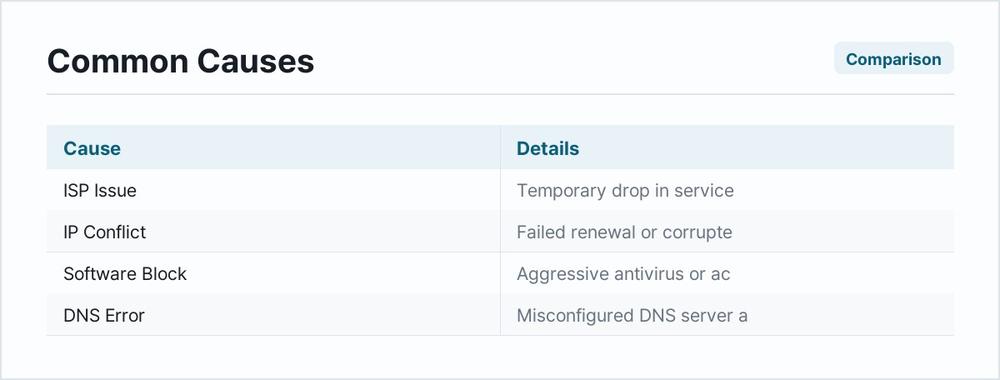
The most common cause is a temporary drop in service from the internet service provider. Local maintenance, a loose coaxial or fiber cable, or an outage at the provider hub will leave your local Wi-Fi intact while cutting off external data.
Another frequent cause is an IP address conflict or a corrupted Domain Name System cache on the client machine. If your computer fails to renew its IP lease from the router, it can maintain the radio connection while losing the ability to route traffic.
Interference from third-party security software, such as aggressive antivirus suites or active virtual private network applications, can also block outgoing and incoming data packets, tricking the operating system into thinking the internet is offline.
Finally, misconfigured DNS server addresses can prevent your browser from translating web addresses into IP numbers, creating the illusion of a complete network outage even when the physical connection is active.
Fix in this order
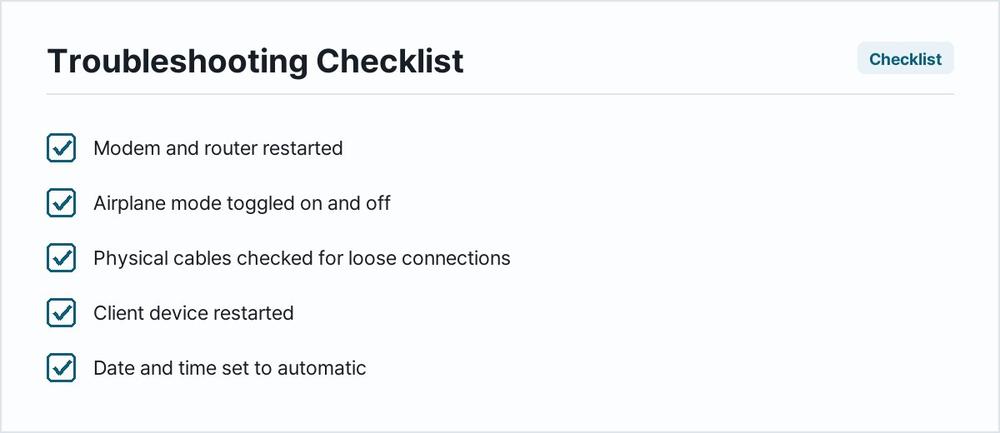
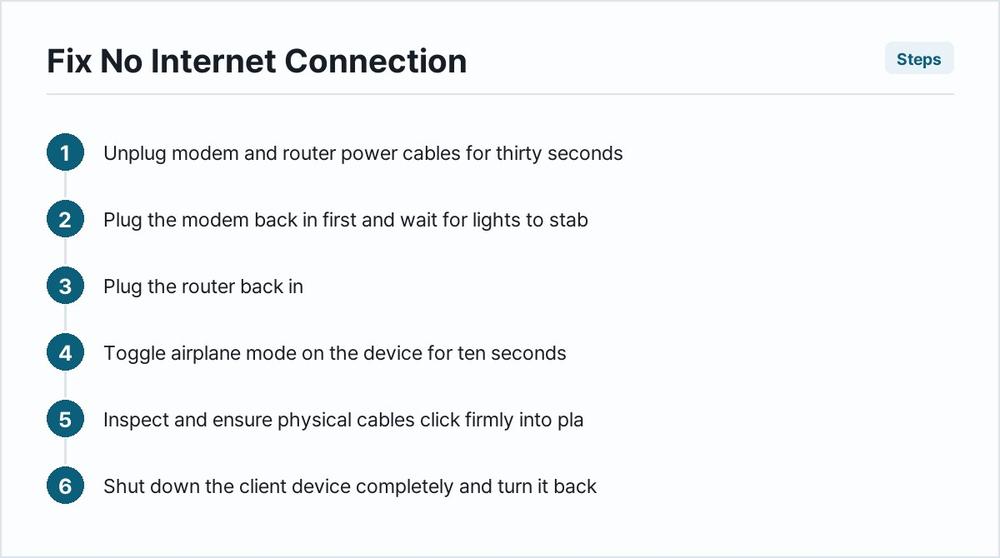
Restart the modem and router. Unplug both devices from the electrical outlet for thirty seconds, then plug the modem in first. Wait for its status lights to stabilize, then plug in the router. What this rules out: Temporary freezes in network hardware, crashed routing tables, and minor IP allocation glitches assigned by your service provider.
Toggle airplane mode on the device. On a phone or computer, turn on Airplane Mode, wait ten seconds, and turn it off. This forces the wireless card to drop the current connection and negotiate a fresh authentication handshake with the router. What this rules out: A temporary software lock in the local wireless network interface card.
Check the physical cables. Inspect the cables connecting your modem to the wall outlet and to your router. Ensure each connector clicks firmly into place. If a cable appears frayed or loose, replace it. What this rules out: Physical damage, loose line connections, and degraded signal transmission from the street infrastructure.
Restart the client device. Shut down your computer, phone, or tablet completely and turn it back on after one minute. What this rules out: Operating system network stack freezes, lingering background process blocks, and minor software glitches in current versions of Windows, macOS, iOS, or Android.
Check date and time settings. On Windows, go to Settings > Time & Language > Date & time and verify that 'Set time automatically' is turned on. On Mac, go to System Settings > General > Date & Time and enable automatic updates. What this rules out: Secure socket layer certificate verification failures. If your device thinks it is living in the past or future, modern encrypted websites will refuse to load.
Run the built-in network troubleshooter. On Windows, go to Settings > System > Troubleshoot > Other troubleshooters and run the Internet Connections tool. On Mac, hold the Option key, click the Wi-Fi icon in the menu bar, and select Open Wireless Diagnostics. What this rules out: Common software misconfigurations, corrupted routing tables, and missing local gateway definitions.
Flush the DNS cache and renew IP configuration (Windows). Open Command Prompt as an administrator. Type ipconfig /flushdns and press Enter. Then type ipconfig /release followed by ipconfig /renew and press Enter. What this rules out: Corrupted local Domain Name System records, expired IP leases, and bad packet routing paths stored in memory.
Change DNS server addresses. Switch your network settings to use public DNS providers such as Cloudflare (1.1.1.1) or Google (8.8.8.8). On Windows, go to Settings > Network & internet > Wi-Fi > Hardware properties, locate DNS server assignment, and click Edit. On Mac, go to System Settings > Network > Wi-Fi > Details > DNS. What this rules out: Internet Service Provider DNS server outages and name resolution failures that block web traffic.
Disable VPN and third-party firewalls. Turn off any active virtual private network applications or strict antivirus firewalls. What this rules out: Blocked tunnel connections, malfunctioning proxy filters, and security suite false positives.
Forget the Wi-Fi network and reconnect. On Windows, go to Settings > Network & internet > Wi-Fi > Manage known networks, select your network, and click Forget. On Mac, go to System Settings > Network > Wi-Fi > Advanced, select the network, and click the remove button. Then select the network again and type your password. What this rules out: Corrupted saved security profiles, mismatched encryption keys, and outdated authentication handshakes.
Warning: The following steps involve resetting or reinstalling system components. Before proceeding with network resets, ensure you have your Wi-Fi network names and passwords written down because you will need to re-enter them on every device in your home. If you choose to reinstall network drivers, note that you will temporarily lose wireless capability until the new drivers load.
Reset network settings. On Windows, go to Settings > Network & internet > Advanced network settings > Network reset and click Reset now. On iOS, go to Settings > General > Transfer or Reset iPhone > Reset > Reset Network Settings. On Android, go to Settings > System > Reset options > Reset Wi-Fi, mobile & Bluetooth. What this rules out: Deeply embedded configuration corruption across all networking protocols.
Reinstall network adapter drivers (Windows). Right-click the Start button and select Device Manager. Expand Network adapters, right-click your wireless adapter, and select Uninstall device. Restart your computer; Windows will automatically reinstall the driver upon reboot. What this rules out: Corrupted driver files, bad firmware states, and internal device communication breakdowns.
When it is hardware
If you have completed every software troubleshooting step and multiple devices in your home still show connected to Wi-Fi with no internet access, the issue is hardware-related. To verify this, connect a laptop directly to your router using an Ethernet cable. If the wired connection also lacks internet access, the problem lies either in your modem, your router, or your internet service provider's external lines.
Next, connect that same Ethernet cable directly from your computer to the modem, bypassing the router entirely. If the internet starts working immediately, your wireless router has suffered an internal hardware failure, its firmware has crashed beyond a normal reboot, or its WAN port is damaged. If plugging directly into the modem still yields no internet connection, contact your internet service provider to report a line outage or request a replacement modem.
| Symptom | Likely cause | What to do |
|---|---|---|
| Only one device lacks internet | Local IP or DNS corruption on that machine | Flush DNS, forget the network, and restart the device |
| All devices lack internet | Modem, router, or ISP outage | Power cycle modem and router, check physical cables |
| Yellow warning triangle on icon | Authentication established, data packets blocked | Run network troubleshooter and check date/time settings |
| Wi-Fi drops out randomly | Wireless interference or overheating router | Move router to an open space, change Wi-Fi channel |
| Connected but websites will not load | Bad DNS server assignment | Switch to public DNS providers like Cloudflare or Google |
| Ethernet works, Wi-Fi does not | Router wireless radio failure | Factory reset router or replace unit |
How to stop it coming back
Preventing future network drops requires basic maintenance of your networking hardware and software environment. Keep your wireless router firmware updated by logging into its admin dashboard every few months. Routers receive security patches and stability updates that prevent memory leaks and unexpected crashes.
Avoid placing your router inside enclosed cabinets, near large metal appliances, or close to thick concrete walls. Overheating is a primary cause of random hardware lockups that drop internet traffic while keeping the local Wi-Fi broadcast active.
Set your computer and phone operating systems to install security updates promptly. Outdated network stacks are more prone to corrupting IP leases and DNS caches. Finally, keep a surge protector dedicated to your modem and router to shield sensitive internal routing chips from electrical spikes caused by storms or power fluctuations.
Why does my Wi-Fi keep dropping every few hours?
Frequent drops are usually caused by wireless channel congestion from neighboring networks, overheating router hardware, or an unstable line signal coming from your internet service provider.
Do I need to call my internet provider if my Wi-Fi is connected?
Call your provider if power cycling your modem and router does not restore internet access, or if you plug a computer directly into the modem via Ethernet and still receive no connection.
Can a failing router cause connected devices to lose internet?
Yes. As router internal components degrade, the processor can handle local wireless handshakes while failing to route heavy data packets out to the wider internet.
Does changing my DNS speed up my internet connection?
Switching to a fast public DNS provider can improve the speed at which websites begin loading, though it will not change your raw download bandwidth provided by your subscription.
Is it safe to use the network reset feature on my phone?
Yes, it is completely safe. Resetting network settings only clears saved Wi-Fi passwords, paired Bluetooth devices, and cellular profiles, returning them to factory default states to clear out hidden bugs.
Frequently Asked Questions
Why does my laptop say connected to Wi-Fi but has no internet?
This usually means your device has successfully communicated with your wireless router, but the router itself cannot reach the wider internet due to an ISP outage, a local IP configuration error, or a stuck network card.
How do I fix Wi-Fi connected with no internet on Windows?
Start by restarting your router and computer. If that fails, run the built-in network troubleshooter, flush your DNS cache using Command Prompt, or reinstall your wireless network adapter drivers.
Why do my other devices have internet, but one does not?
When only one device lacks internet access, the issue is local to that specific machine. It is usually caused by incorrect date and time settings, corrupted DNS configurations, a malfunctioning VPN client, or outdated network drivers.
Can a bad Ethernet cable cause my Wi-Fi to drop internet?
No, a faulty Ethernet cable affects wired connections, but if that cable connects your modem to your router, a failure there will cause your wireless network to drop its connection to the internet entirely while keeping local Wi-Fi active.
What does a yellow exclamation mark on the Wi-Fi icon mean?
A yellow exclamation mark or a globe icon with a warning symbol means your operating system detects a valid connection to the local access point, but data packets cannot reach external servers on the internet.