How to Fix Chrome Using Too Much RAM
Chrome uses a lot of memory partly by design: it runs tabs, extensions and parts of the browser in separate processes so that one crashing page does not take down the rest. High memory use only becomes a problem when the computer slows down, other apps struggle, or tabs keep reloading. The fixes below go from the built-in settings Google provides, through extensions and site data, to deciding whether the computer simply needs more memory. Google's help page for Chrome's performance settings describes Memory Saver and Energy Saver, which are the first things to check (Google Chrome Help, Personalize Chrome performance, read October 9, 2026).
Step 1: Find What Is Using the Memory
Open Chrome's own Task Manager from the menu (More tools > Task manager), or press Shift+Esc on Windows. It lists every tab, extension and helper process with its memory use. Sort by the memory column. A single tab or extension using far more than the rest is the usual culprit: a web app left open for days, a video site, or an extension that injects code into every page. End the process from Task Manager to confirm the effect, then decide whether to close, replace or remove it.
Step 2: Turn On Memory Saver
Google explains that Memory Saver frees memory by deactivating tabs you aren't currently using; when you return to an inactive tab, it reloads automatically. Go to Settings > Performance and turn Memory Saver on, then pick a level: Moderate (tabs become inactive after a longer period), Balanced (recommended), or Maximum (tabs become inactive after a shorter period). You can add sites you always want kept active, such as a music player or a web app you use all day.
Step 3: Use Energy Saver on Laptops
According to Google, Energy Saver reduces Chrome's image capture rate and other background tasks to extend battery life and works automatically when the device is unplugged or the battery is low, depending on the setting you choose. When it is on, Chrome stops eligible CPU-intensive background tabs; tabs used for video conferencing or playing audio are not affected. Google notes you may see changes in gaming and video performance, and that Energy Saver is available on Windows, Mac and Chromebook devices with a battery.
Step 4: Review Extensions
Each extension can run its own background process. Open the Extensions page (chrome://extensions), remove anything you don't use, and turn off those you only need occasionally. Watch especially for extensions with access to "all sites", since they run on every page you open. If memory drops sharply after disabling one, either keep it off or look for a lighter alternative.
Step 5: Tidy Tabs and Site Data
- Close tabs you are not using, or bookmark groups of them for later.
- Use tab groups to keep related tabs together and collapse what you are not working on.
- Clear cached images and files for sites that misbehave, from Settings > Privacy and security.
- Restart Chrome now and then; a fresh start releases memory that long-running pages have accumulated.
Step 5b: Use Separate Profiles or Windows Wisely
If you keep work and personal browsing in one window with dozens of tabs, consider splitting them. Chrome profiles keep bookmarks, extensions and sign-ins separate, so a personal profile with a few extensions is not loading your work tools, and you can close a whole profile when you finish. Reading lists and bookmarks are lighter than open tabs for pages you only want to read later. If a particular site is heavy, such as a large spreadsheet or a design tool, give it its own window so you can see its memory use clearly in Task Manager and close it as one unit when you are done. These habits do not change how Chrome works, but they keep the number of active processes closer to what you actually need.
Step 6: Update Chrome and Check for Unwanted Software
Keep Chrome updated from Settings > About Chrome, since updates include performance and security fixes. If Chrome suddenly becomes slow, shows unexpected pop-ups, or changes its homepage or search engine, unwanted software may be involved: reset settings from Settings > Reset settings, and run your operating system's security scan, such as Windows Security on Windows.
Step 7: Check Hardware Acceleration
Chrome uses the graphics processor to draw pages. On most computers this improves performance, but an outdated or buggy graphics driver can cause stutter or high resource use. If you see visual glitches, try updating the graphics driver first; as a test, you can turn "Use graphics acceleration when available" off in Settings > System, restart Chrome and compare.
When the Computer Needs More Memory
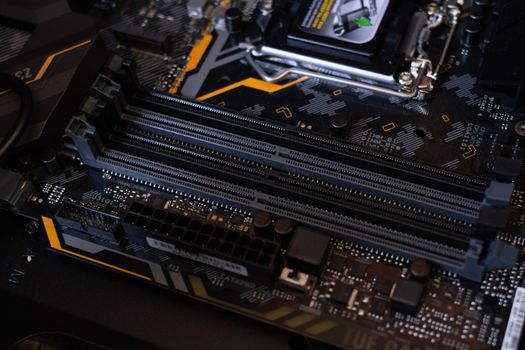
If memory is constantly near full even with few tabs open and Memory Saver on, the computer may simply not have enough RAM for how you work. On Windows, Task Manager's Performance tab shows total memory use; on a Mac, Activity Monitor's Memory tab shows memory pressure. Before buying memory, check whether your computer's RAM is upgradeable and which type and maximum it supports in the manufacturer's specifications; many thin laptops have soldered memory. RAM prices change often, so compare current prices for the exact part.
Comparison: Ways to Reduce Chrome's Memory Use
| Fix | Cost | Effect |
|---|---|---|
| Memory Saver | Free, built in | Frees memory from inactive tabs |
| Energy Saver | Free, built in | Reduces background work on battery |
| Removing extensions | Free | Removes background processes |
| Closing or grouping tabs | Free | Fewer active processes |
| Updating Chrome and drivers | Free | Fixes bugs that waste resources |
| More RAM | Paid part | More headroom for everything |
Frequently Asked Questions
Why does Chrome use so much RAM?
It runs tabs, extensions and parts of the browser in separate processes for stability and security, and each process needs its own memory. Heavy web apps and many open tabs add up.
Is high Chrome memory use a problem?
Not by itself. Unused memory does nothing for you; it becomes a problem when your computer slows down or other apps run short.
Will Memory Saver lose my work in a tab?
The tab reloads when you return to it. For pages with unsaved form data, add the site to the always-active list or save your work first.
Do other browsers use less memory?
Results vary by browser version, extensions and the sites you use. If you want to compare, open the same set of sites in each and check your system's memory use.
Should I use a "RAM cleaner" app?
They are generally unnecessary. Chrome's built-in settings and your operating system manage memory on their own.
Key Takeaways
- Use Chrome's Task Manager to find the tab or extension using the most memory.
- Turn on Memory Saver, and Energy Saver on laptops.
- Remove extensions you don't need and close or group tabs.
- Keep Chrome and graphics drivers updated.
- Add RAM only if memory stays full after these steps and your computer supports an upgrade.
Sources and References
- Google Chrome Help, Personalize Chrome performance — Memory Saver and Energy Saver (read October 9, 2026).